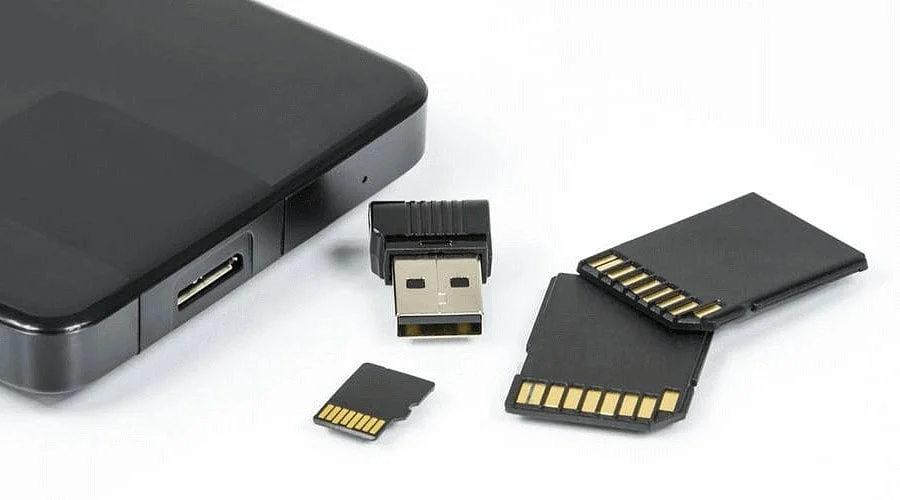
When Android flashes notifications like “SD card is corrupted” or “Blank SD card” and your gallery suddenly empties, the reassuring reality is that your photos and videos are likely still intact on the card. The operating system has simply lost its ability to read them.
Your actions over the next ten minutes will determine how much data you successfully retrieve. The most critical rule is avoiding actions that make the situation worse.
What went wrong with the card
MicroSD cards rely on a file system—a directory tracking every file and its exact location. Android checks this ledger every time the card is inserted. If the data gets corrupted, the phone can no longer index your files, leading to the corruption warning and a prompt to format the card.
Common culprits include removing the card during an active write operation, a phone shutting down from a dead battery during a file transfer, bad sectors on aging hardware, counterfeit cards, or dirty/loose contacts in the phone’s tray. The actual data usually remains untouched. Formatting simply deletes the broken directory, allowing new files to overwrite the old ones—which is how people permanently lose their pictures.
Do these first
-
Power down your phone and remove the SD card.
-
Refrain from formatting the card or repeatedly inserting it into the device.
-
Do not save or copy any new data onto the card.
If you have already formatted the media, the same guidance applies: cease use immediately and proceed directly to the Stellar instructions outlined below.
Check the cheap fixes
Occasionally, the card itself is fine. Gently wipe the metallic contacts with a clean, dry cloth, inspect the phone slot for debris, and test the card in another smartphone. A faulty card reader slot can mimic a corrupted storage card.
Next, test the card using a computer. USB card readers are inexpensive, and many laptops feature built-in SD slots compatible with a microSD adapter. If the card mounts successfully, immediately copy all contents to your computer’s hard drive and stop there. If Windows prompts you to format the drive or displays it as RAW, proceed to the next step.
Additionally, check your cloud storage accounts. If Google Photos or Samsung Cloud was enabled, your images may already be safely stored online.
Some malware or interrupted file transfers can flag your files as hidden. The card appears empty, yet the storage properties show space is still occupied. To check for this on Windows, open the Command Prompt with administrator privileges and execute the following command, replacing **X** with your card’s actual drive letter:
attrib -h -r -s /s /d X:*.*
If your files appear, copy them off the card immediately. If they do not, move forward.
Recover the data with Stellar Photo Recovery
This is the recommended path for addressing genuine file corruption reliably. Mobile-based recovery apps present a major drawback: they rely on the same Android system that currently cannot read the card. Furthermore, the most effective mobile options often require root access—something most users want to avoid on a phone holding their only copy of precious photos. Utilizing a computer-based utility bypasses these hurdles entirely.
Stellar Photo Recovery is a specialized software designed to retrieve pictures, videos, and audio files, covering virtually all media formats stored on mobile devices. Instead of trusting the damaged file system, it performs a low-level scan of the card, successfully extracting data from cards that are corrupted, formatted, or flagged as RAW. It supports common formats like JPEG and PNG alongside numerous camera RAW files and popular video codecs. Because the scan operates in a read-only mode, it ensures safety for unstable storage media. Additionally, the built-in preview feature lets you verify files before committing to the recovery process.
Steps:
-
Connect the card to your computer using a card reader.
-
Download and install Stellar Photo Recovery from the official Stellar website. Always install software on your computer’s primary drive, never on the troubled SD card.
-
Launch the application and choose the option for photos, audio, and video recovery.
-
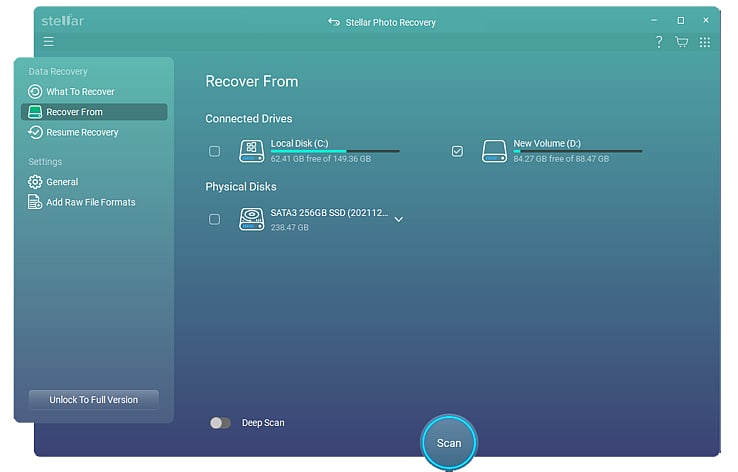
Select your SD card from the available drives and initiate the scan.
-
If your files do not show up initially, execute the deep scan. This takes longer as it thoroughly inspects every sector of the card, but it yields higher recovery rates.
-
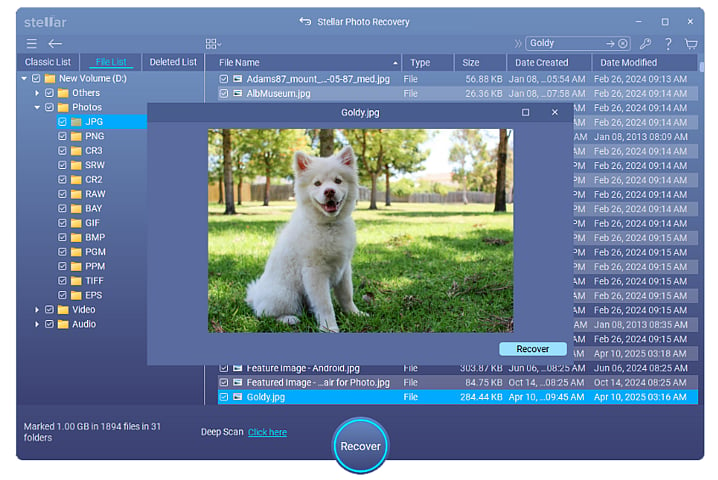
Open a few preview windows to ensure the data is uncorrupted.
-
Select the desired files, click Recover, and export them to a designated folder on your computer. Do not save recovered files back onto the SD card.
Verify that the recovered files open correctly before performing any further actions on the memory card.
Repair the card
Once your data is secured, you can attempt to repair the card. On Windows, open the Command Prompt as an administrator and type `chkdsk X: /f` (replacing **X** with your assigned drive letter). This tool scans the file system and attempts to fix errors. If the card functions afterward, you may continue using it, though formatting is still strongly recommended.
If the `chkdsk` utility fails, format the card. You can do this through your phone’s storage settings (navigating via Settings > Storage > SD Card > Format—though exact menus vary by manufacturer) or via a computer. The free SD Memory Card Formatter tool provided by the SD Association is highly effective for this. Format cards larger than 32 GB as exFAT, and smaller cards as FAT32.
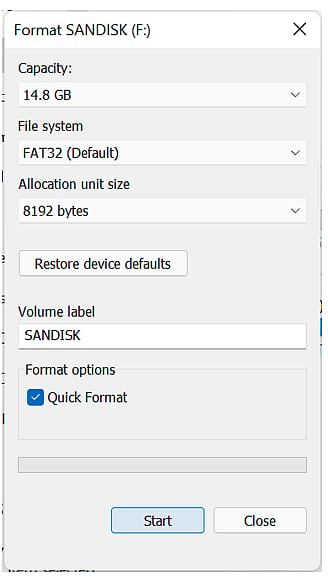
If error messages return, or if the card becomes hot, slows down unexpectedly, or unmounts randomly from the phone, discard and replace it. Flash memory wears out over time.
When recovery doesn’t work fully
Full recovery is not guaranteed in every scenario. Files that have been overwritten are permanently lost. Certain video files may return partially damaged, and some photos may exhibit gray bands or truncated frames. If your computer fails to detect the card altogether, the failure is likely hardware-related, such as a dead controller chip, leaving professional data recovery services as your only recourse (which can be expensive).
Conversely, a formatted card still holds a strong recovery potential. Quick formatting typically clears only the directory structure, meaning a deep scan can often recover most historical data provided no new files were written afterward.
Questions people ask
Can I recover data without a computer? Only in rare instances where your phone retains partial read access, allowing you to transfer files to internal storage. For severe corruption, utilizing a computer yields significantly better outcomes.
Will scanning damage the card? No, read-only scanning does not write any data to the card. Physical damage and data loss are typically caused by formatting or writing new files to unstable media.
How long does a scan take? Duration depends on the capacity and health of the card. A quick scan on a small card may finish in minutes, whereas a deep scan on a 128 GB card can take an hour or longer. Ensure your computer remains powered and uninterrupted throughout the process.
Does the card’s brand matter? Brand has little impact on the recovery process itself, but it matters immensely for reliability. Reputable brand-name cards fail far less frequently than unbranded alternatives.
Preventing it next time
Always utilize the “Unmount” or “Eject” command within your device’s storage settings prior to removing a memory card. Never yank the card out while data is actively saving. Purchase memory cards from trusted manufacturers and authorized retailers to avoid unreliable counterfeits. Finally, maintain a robust backup strategy: your SD card should never be the sole repository for your photos. Enable automated cloud backups or copy your card contents to a computer on a monthly basis.
Quick recap
Remove the card immediately, avoid formatting it, check existing cloud backups, and run a read-only scan using Stellar Photo Recovery on a computer. Save your recovered files to a separate drive before attempting to repair or replace the card. Following this sequence successfully restores your files in the vast majority of cases.