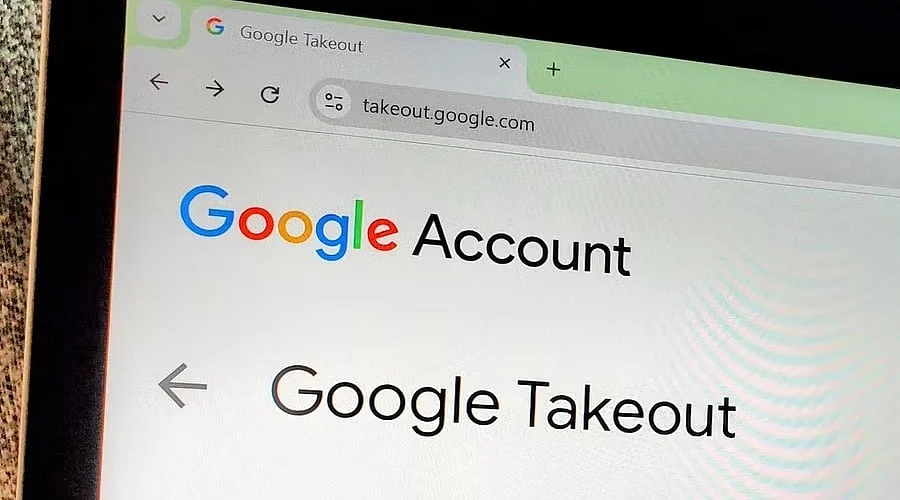
Overview:
-
Google Takeout provides a simple way to build an archive of information kept within your Google Account.
-
Users are able to pick individual services and tailor the specific data contained in an export.
-
Accessible information covers emails, documents, calendar entries, photos, YouTube videos, contacts, and account activity.
Your Google Account can hold years of crucial personal information, potentially including emails, photos, documents, contacts, calendars, and YouTube content. Google supplies a utility called Google Takeout to download this information.
You can leverage Takeout to generate an archive of chosen account data to maintain a copy or store it elsewhere. The process remains straightforward, though you must pay attention to various options. Here is how to safely download your Google data.
What is Google Takeout?
Google Takeout functions as Google’s data export tool, allowing users to make copies of information housed across multiple Google services. Available data can span Gmail, Google Drive, Google Photos, Calendar, Contacts, YouTube, and more, while the precise options rely on the services linked to your account.
Takeout leaves everything on Google’s servers intact, simply producing a duplicate of chosen information. Consequently, you can utilize it for backups or personal record-keeping, or to assist when transferring information between services.
Also Read: Google Ordered to Shut Hundreds of Firebase Accounts Over Scams
Choose the Google Data You Want
Begin by signing into the specific Google Account you wish to export. Next, open Google Takeout and review the listed products, noting that Google may automatically check several of them. You can uncheck services you prefer to omit.
Certain products additionally feature an “All data included” option, enabling you to pick particular categories within that service. For instance, you might want Google Photos without every other available Google service. Once your choices are made, click Next step. Restricting your selection to only necessary data simplifies managing the export and shrinks the size of your final archive.
Select Where to Receive Your Data
Google presents multiple delivery alternatives for Takeout archives. You can opt to receive a download link via email or route the archive straight to Google Drive. Additional supported platforms consist of Dropbox, OneDrive, and Box. Email delivery offers a convenient route for a basic personal backup, allowing you to pull the archive straight to your computer.
Cloud destinations prove useful when dealing with a large archive, though you should verify your available storage beforehand. Keep in mind that copies stored in the cloud remain bound to that provider’s policies, prompting Google to advise reviewing the privacy and sharing settings of those destinations.
Choose the Export Format and Size
Google lets you pick between ZIP and TGZ archive formats, where ZIP files typically function on most computers without needing extra software. You can also define the maximum archive size; should your data surpass that limit, Google splits it into multiple archive files.
You can generate a one-time archive for a single backup, or opt for scheduled exports that run every two months for a year. A single export satisfies most users needing occasional backups. After your configurations are set, click Create export.
Download and Check Your Archive
Google processes your selected data before granting access, with preparation times varying according to the volume of information. When the archive is finished, Google dispatches an email containing access instructions, allowing you to pull the archive from your chosen destination.
Google advises viewing Takeout exports from a desktop computer, as the archive contains an archive_browser.html file detailing the exported content. Make sure to store the downloaded archive securely, given that your export may hold sensitive personal details.
Also Read: How to Remove a Phone Number From Your Google Account?
Important Things to Know Before Downloading
A Takeout export produces a copy rather than a deletion request, meaning your original information stays put within the Google services you utilize. Furthermore, recent modifications might fail to show up in the final archive, as Google notes that data can shift between submitting the request and generating the archive.
Work and school accounts may also enforce limitations, as administrators can dictate whether you are allowed to download certain files. Always inspect your archive’s contents thoroughly prior to sharing it, since it could hold emails, documents, photos, contacts, and other private material.
Google Takeout delivers a practical method for retaining command over your account data, provided you select the correct services and safeguard the finished archive.
You May Also Like
Google Adds Selfie Video Verification for Easier Account Recovery
How to Keep Your Google Account Safe and Avoid Being Locked Out
Google Restricts Gemini AI Ultra Accounts Over OpenClaw OAuth Access
FAQs
1.What is Google Takeout?
Google Takeout serves as Google’s data export utility, permitting users to generate downloadable duplicates of information housed across their Google services. Depending on the account, these exports can encompass Gmail, Google Drive, Google Photos, Calendar, YouTube, and additional data.
2.How do I download my Google Account data?
Sign into the specific Google Account you wish to export. Launch Google Takeout and check the services you require. Pick a delivery method, archive format, and size limit, then click Create export. Google will assemble the archive and grant access once it is ready.
3.What data can I download from my Google Account?
Google Takeout accommodates data from a wide array of Google products. Depending on your account, this can span emails, documents, calendar entries, photos, YouTube videos, and account activity, with available products fluctuating based on your usage.
4.Can I download only Google Photos or Gmail data?
Yes. Google Takeout permits users to isolate individual products. Certain products also offer an All data included feature, allowing users to narrow down the information packed into the export. Restricting the number of products also helps keep large exports manageable.
5.Does downloading Google data delete it from my account?
No. Downloading your Google data merely creates a copy, leaving the original information inside your Google services. Erasing data or the account itself necessitates a separate procedure through your Google Account settings.