Overview
-
Identify common reasons Alexa stops responding, mishears voice commands, or fails to control connected smart-home devices.
-
Understand how Alexa detects wake words, processes audio, and handles voice recordings and accidental activations.
-
Learn how to troubleshoot Alexa issues, review voice history, and adjust privacy settings to manage stored recordings and personal data.
When a smart speaker stops responding, it can feel surprisingly personal. One moment it answers every prompt without delay; the next, it stares blankly or misinterprets a straightforward request. Finding a solution usually begins with a basic question: what specific type of failure is occurring?
Why Alexa Stops Responding
Most voice-control problems stem from a recognizable symptom. Matching the issue to its most probable cause saves both time and guesswork.
Begin with the easiest diagnostics. A muted microphone or environmental noise—such as a running dishwasher, television, or fan—can prevent Alexa from picking up the wake word before anything else fails. Repositioning the speaker closer to common speaking areas often resolves this without changing any settings.
If Alexa wakes up but fails to reply, the issue is typically linked to the internet connection rather than the microphone, given that the majority of processing takes place in the cloud. Restarting the Wi-Fi router followed by the speaker can help re-establish that link.
When a smart-home automation fails while regular voice responses function normally, the trouble is more likely rooted in the connected device or its associated service than in Alexa.
Wording also plays a role. Alexa is optimized for standard speech patterns, meaning concise, straightforward commands generally outperform overly long or complex phrases. Software updates rarely require manual intervention, as compatible Echo devices update automatically when connected to the internet. If difficulties persist after these checks, examining the voice history is the next logical step, as detailed further down.
How Alexa Actually Listens
Alexa’s operation involves several distinct phases, each serving a specific purpose. Echo devices are built to detect the wake word locally prior to transmitting any requests to Amazon’s cloud infrastructure.
Once the device recognizes the wake word, it sends the audio to the cloud for processing. This transmission may include a brief fragment of sound captured immediately before the wake word was identified.
Amazon also employs a secondary cloud-verification procedure to confirm that the wake word was genuinely spoken rather than simulated by a similar sound, though this mechanism can differ across various Echo models.
Only following this verification is an audio recording typically saved to the user’s account history. This explains why accidental triggers occasionally capture a few seconds of unintended conversation, making it important to review stored logs.
What Happens to Voice Recordings
Amazon provides tools to review and delete voice recordings, text transcripts, and typed prompts via Alexa Privacy, with retention choices dependent on individual account configurations. These represent three distinct data types: the audio file itself, a textual transcript of what Alexa interpreted, and associated account logs detailing the executed action.
Certain deletion tools handle these categories together, while others do not. Users should verify exactly what items a deletion command removes rather than assuming a single action clears everything. Furthermore, removing this data can impact certain functions, such as voice recognition for multiple household members.
How to Manage Alexa Privacy
Accessing these controls requires navigating a few menus. Open the Alexa app, select More, navigate to Alexa Privacy, and choose Review Alexa History to inspect recent requests. To modify retention preferences, open Manage Your Alexa Data and examine the available options. Menu titles may vary slightly depending on the app version and geographical region.
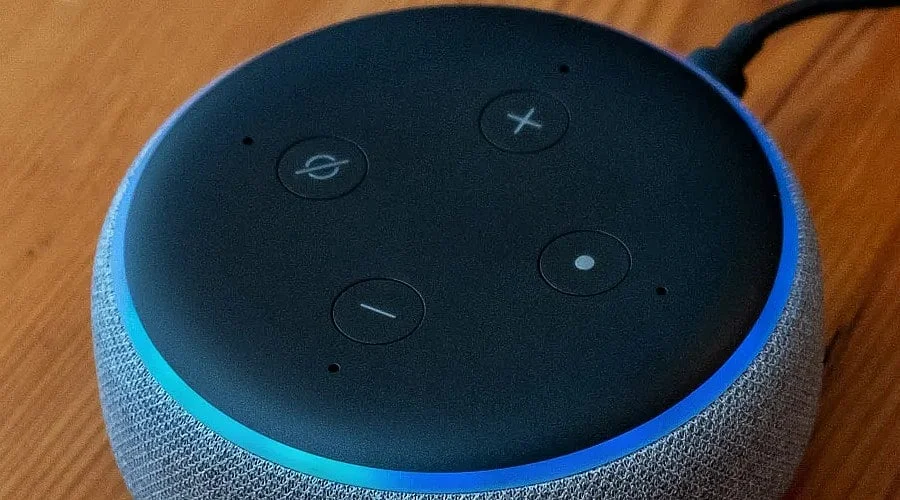
The physical microphone-off button deactivates the Echo’s internal microphones, indicated by a red light. This prevents that specific device from capturing audio while engaged, though it does not affect other smart speakers or services within the household.
Also Read: How to Customize Alexa Commands for Smarter, Easier Voice Control
Making the Settings Work for You
Reviewing voice history addresses two concerns from a single interface: it purges unneeded audio files and reveals which specific commands or sounds frequently trigger false activations. For most homes, a practical routine is straightforward.
Resolve immediate glitches using the steps outlined above, check the voice history if problems persist, and modify retention preferences to align with personal preferences regarding data storage.
Also Read: Alexa Commands for Everyday Tasks
Final Thoughts
Resolving Alexa responsiveness issues takes only moments, and reviewing voice history or adjusting privacy preferences requires just a little extra time. Together, these straightforward practices preserve the convenience of voice commands while granting owners true oversight over their stored recordings and personal information.
You May Also Like:
Alexa Tricks and Secret Commands to Try
Best Alexa Commands: Useful Things to Ask Alexa
Alexa Light Colors Explained: What Each Indicator Means
FAQs
1.Why does Alexa sometimes fail to hear the wake word?
Background sounds from household appliances, televisions, or fans can mask the wake word. Placing the speaker closer to frequent speaking areas and away from continuous noise sources usually resolves this.
2.Alexa wakes up but does not respond. What does that mean?
This symptom typically points to a network issue rather than a microphone fault, because cloud processing handles most of the work. Power-cycling the router and then the speaker often restores connectivity.
3.Does Alexa record everything happening nearby?
No. Echo devices are engineered to identify the wake word locally without streaming audio externally. Audio is only transmitted to the cloud after the wake word is detected, along with a short buffer recorded just prior to that moment.
4.Does deleting a voice recording remove all related data?
Not always. Audio recordings, transcripts, and account logs are managed separately. Some deletion features combine them while others do not, making it wise to verify what a specific deletion command targets.
5.How can someone review or delete their Alexa voice history?
Open the Alexa app, go to More, select Alexa Privacy, and tap Review Alexa History to view recent interactions. Retention settings can be found under Manage Your Alexa Data, though exact menu labels may differ by region and app release.