Overview
-
Chrome includes a built-in method for converting web pages into printable PDF files.
-
Print configuration settings determine the visibility of webpage elements, colors, images, and overall layout in the final PDF.
-
Converted pages can look different from the live site, particularly when handling wide layouts, dynamic images, and browser-specific features.
Web content shifts constantly. Broken links, updated text, and altered pricing happen frequently. Capturing a page promptly preserves critical information. A PDF creates a static version of the printable content as it appears at the exact time of saving, making it easy to review later, share with others, or view offline.
Chrome generates these documents natively without requiring external software. The procedure takes only a few moments. Adjusting Chrome’s print preferences allows users to manage layout, scaling, and color options, transforming an unstable web page into an easily storable file.
Why Save a Web Page as a PDF
PDF documents open seamlessly across phones, tablets, and computers while maintaining text, images, and formatting within a single file. Professionals frequently rely on them for booking confirmations, invoices, and receipts.
Acting as a digital snapshot, a PDF freezes the printable content precisely as it looked during conversion. It remains completely static even if the source webpage undergoes future modifications.
How to Save a Web Page as a PDF on Desktop
The core process for printing to PDF in Chrome functions similarly across Chromebooks, Windows, Mac, and Linux systems.
-
Navigate to the desired page inside Chrome.
-
Trigger the print command by pressing Ctrl+P on a Chromebook, Windows, or Linux device, or Cmd+P on a Mac. Alternatively, click the three-dot browser menu and select Print.
-
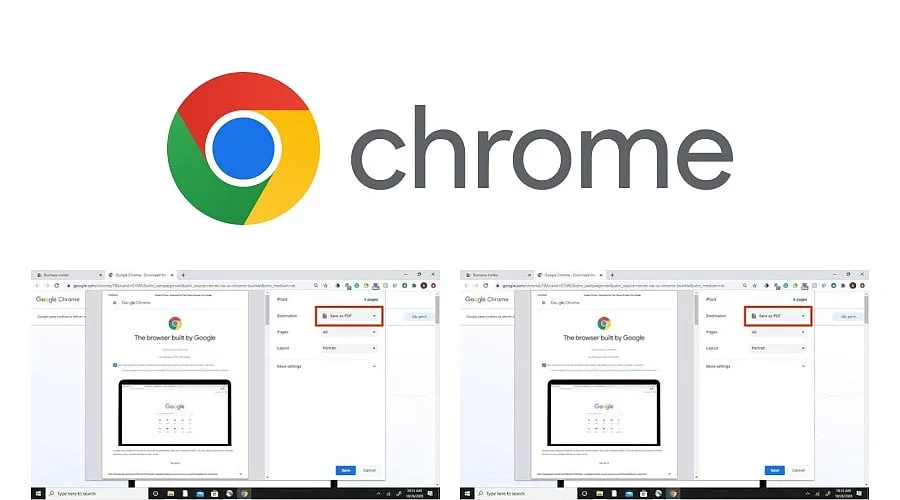
Locate the destination field and set it to Save as PDF.
-
Review the document layout using the right-hand preview pane.
-
Hit Save.
-
Select a destination folder, adjust the file name if desired, and click Save once more.
Check Chrome’s Print Settings
Additional configuration choices are hidden beneath the More settings menu inside the print panel.
Enabling headers and footers incorporates extra reference data that simplifies file identification and source tracking. Disabling these options yields a cleaner layout free of automated browser details.
How to Save a Web Page as a PDF on Android and iPhone
Android devices route Chrome’s print command through the operating system‘s native print framework, though specific menu text changes depending on the device, Android build, and Chrome edition.
-
Launch the webpage within Chrome.
-
Open the three-dot menu and tap Share.
-
Choose Print.
-
Designate Save as PDF as the printer.
-
Tap the PDF icon and select a storage destination.
iPhone users should open Chrome’s Share menu and choose Print. Subsequent actions occur inside Apple’s native print interface instead of Chrome. Pinching outward on the document preview opens it as a PDF, after which the Share icon can be used to send the file to the Files app.
How to Fix Common Chrome PDF Problems
Images Are Missing
Certain websites utilize lazy loading, meaning images only render as the user scrolls downward. Scrolling through the entire page prior to printing can force these images to load. However, some graphics may still remain absent if the site’s dedicated print stylesheet excludes them.
The Layout Looks Different
Chrome frequently defers to a webpage’s dedicated print styling rather than its standard display layout, causing columns to shift and menus to vanish. Modifying the orientation to landscape or decreasing the scale setting can help accommodate wide-format content.
Colors Are Missing
Background graphics control whether Chrome retains background images and fills within the PDF. Because Chrome keeps this setting disabled by default, colorful pages can appear stark and unformatted in the final export. Accessing the extra settings in the print panel and checking the background graphics box resolves this issue.
Private Details Appear
Saved PDFs retain every piece of visible sensitive data displayed on the screen. Account summaries, travel itineraries, emails, and billing statements regularly display personal names, physical addresses, and order identifiers. Verifying the preview screen prior to saving or distributing the file takes only a moment.
Also Read: How to Change the Ring Duration on Your Smartphone
Save as PDF vs Save Page As
Chrome also offers a standard Save Page As feature (activated via Ctrl+S on Windows or Cmd+S on Mac). This alternative stores the webpage in a native web format rather than converting it to a PDF, frequently saving a primary HTML document alongside a directory of associated assets depending on the operating system.
The Save Page As command suits individuals who wish to locally browse and reopen the live site structure later. Conversely, Save as PDF is ideal for users who need a static document intended for offline reading, archiving, distribution, or printing. To initiate the PDF process, open the target page and press Ctrl+P or Cmd+P.
Designate Save as PDF as the target printer, review the layout preview, and click Save. Converting exceptionally long single-page documents may require alternative utilities or browser extensions; always audit an extension’s permission requirements before installation.
How to Name and Organize Saved PDFs
Saved documents are only useful if they can be easily retrieved. Chrome automatically populates the file name using the page title, which is frequently messy or overly verbose. Adopting a structured naming convention—such as beginning with the date followed by the topic and origin (e.g., 2026-10-07-chrome-pdf-guide.pdf)—improves organization.
Grouping files into designated directories categorized by subject, such as finance, research, travel, or work, establishes additional structure. Assigning every PDF to an appropriate folder while adhering to a uniform naming strategy simplifies searching, sorting, and future retrieval.
Also Read: How to Reset Chrome Settings: Tips & Tricks You Need to Know
Final Thought
Web content will continue to evolve and disappear over time. Creating a PDF at the right moment secures essential information permanently, and Chrome streamlines the entire procedure.
Taking a second to check the document preview, assign a logical file name, and store the file in an organized folder requires minimal effort. Over time, these saved records accumulate into a dependable reference archive that remains accessible long after the original source material vanishes.
You May Also Like:
How to Use LinkedIn for Personal Branding and Career Opportunities
How to Recover a Hacked Microsoft Account
How to Turn an Old PC into a Media Server: Setup, Uses, What You Need
FAQs
1. How can a web page be saved as a PDF in Chrome?
Bring up the page and use Ctrl+P on Windows, Linux, or a Chromebook, or Cmd+P on a Mac. Set the destination option to Save as PDF, inspect the preview, click Save, and select a target folder.
2. Why does the PDF look different from the web page?
Chrome often applies the website’s print-specific layout instead of the standard screen view, which can shift columns or hide navigation elements. Adjusting the scale factor or switching to landscape mode helps wide content fit properly.
3. How can page colors and background images be kept in the PDF?
Open the expanded print settings menu and activate the background graphics option. Chrome disables this by default, meaning pages featuring colored sections may look plain unless enabled.
4. Can a web page be saved as a PDF on Android or iPhone?
Yes. On Android, open the three-dot menu, select Share, choose Print, and pick Save as PDF. On iOS, open Chrome’s Share menu and choose Print, then pinch outward on the preview layout to view it as a PDF before utilizing the Share controls to store it. Interface labels will differ across operating systems and versions.
5. What is the difference between Save as PDF and Save page as?
The Save as PDF tool generates a fixed layout document built for sharing and printing, whereas Save page as preserves the page in web formats, frequently generating an HTML document accompanied by supporting asset folders.