Overview
-
Navigate to Settings > Reset settings > Restore settings to their original defaults to revert core browser configurations.
-
The built-in reset feature leaves saved bookmarks and passwords intact, though it does impact extensions and other configurations.
-
Android users can utilize Safety Check, while desktop users should inspect extensions, permissions, software updates, and any unwanted programs.
Google Chrome can occasionally behave erratically following the installation of an extension, a modification to browser settings, or a visit to a malicious website. Users might encounter an unfamiliar homepage, an altered search engine, annoying pop-ups, unwanted redirects, or diminished performance.
Restoring Chrome settings helps return the primary browser configuration to its factory state. This is a targeted troubleshooting method and is distinct from completely uninstalling and reinstalling the application.
When Should You Reset Chrome Settings?
A browser reset comes in handy when configurations alter without your direct input. Typical indicators include an unexpected homepage or startup page, an altered search engine, excessive pop-up windows, unfamiliar redirects, or suspicious extensions.
It is also beneficial when Chrome develops erratic behavior after software updates or third-party add-ons alter its setup. Note, however, that a reset is not a substitute for malware removal. If the issues persist, users need to check their underlying device and installed software.
What Happens When You Reset Chrome Settings?
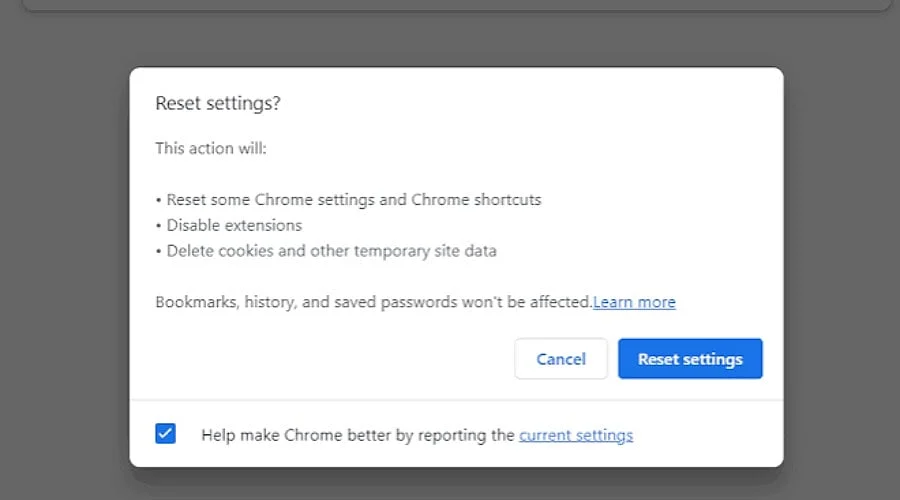
Executing a reset returns several vital browser parameters to their original states. These cover the default search engine, homepage, startup configurations, New Tab page, pinned tabs, content permissions, cookies, site data, extensions, and themes.
Saved passwords, bookmarks, and browsing history remain untouched by this process. Furthermore, certain configurations—such as specific font choices and accessibility adjustments—are not entirely wiped out.
Because extensions and themes are affected, users must manually review and re-enable trusted add-ons afterward. It is also wise to audit site permissions regarding notifications, microphone access, and pop-ups following the reset.
How to Reset Chrome Settings on a Computer
The restoration tool is accessible across Windows, Mac, and Linux versions of Google Chrome.
-
Launch Google Chrome on your device.
-
Click the three-dot menu icon (⋮) located in the upper-right corner.
-
Choose Settings from the menu.
-
Locate and select Reset settings within the Settings menu.
-
Click on Restore settings to their original defaults.
-
Carefully read the prompt displayed in the confirmation dialog.
-
Click Reset settings to finalize the procedure.
Chrome will subsequently revert the applicable parameters. You might need to restart the browser or fine-tune certain personal preferences afterward.
How to Reset Chrome Settings on Android
The Android version of Chrome lacks the exact desktop-style “Restore settings to their original defaults” button. Instead, users must address individual issues via Chrome’s settings.
If you encounter website layout or loading issues, open Chrome, tap the three-dot menu, and choose Delete browsing data. Select the specific categories of data you wish to clear and tap Delete data, allowing you to target information rather than wiping everything.
For security concerns, head to Chrome > Settings > Safety check. This tool helps identify vulnerabilities such as compromised passwords, unsafe browsing parameters, or potentially unwanted permissions and notifications.
Should Chrome run sluggishly, Google suggests updating the application, pruning inactive tabs, and checking performance parameters.
Also Read: How to Keep Google Chrome Secure
Can You Reset Chrome Without Losing Passwords and Bookmarks?
Yes. The native settings reset does not erase saved bookmarks or credentials, and your browsing history is similarly preserved.
Even so, when dealing with critical information, it is always prudent to verify that Chrome Sync is active and your data is properly backed up prior to troubleshooting.
Do not confuse the Reset settings function with Delete browsing data. The latter can purge your history, cached files, cookies, and saved passwords depending on your selections.
What to Do if Resetting Chrome Does Not Fix the Problem
If trouble persists, audit your installed extensions and delete any unrecognized or untrusted add-ons. Verify your site notifications and permissions, update the software, and run the browser’s built-in Safety Check.
Additionally, check your computer for recently installed applications if Chrome keeps reverting to altered configurations, as Google warns that unwanted software frequently meddles with browser preferences.
If Chrome suffers severe corruption or the Settings menu refuses to open, you will need to uninstall and reinstall the browser entirely—a step separate from a standard settings reset.
Resetting your Chrome configurations offers a direct remedy for unwanted browser modifications without sacrificing saved passwords or bookmarks. Desktop users can rely on the built-in reset feature, while Android users should utilize tailored utilities like Delete browsing data and Safety Check. Should difficulties continue, audit your extensions, permissions, software updates, and any potentially unwanted programs.
Also Read: Chrome 154 Security Update: 108 Vulnerabilities Fixed and Why You Should Update
FAQs
1. Does resetting Chrome delete passwords and bookmarks?
No. The native settings reset preserves saved credentials and bookmarks, and your browsing history remains intact.
2. What happens when you reset Google Chrome?
The browser restores core components including the search engine, homepage, startup pages, New Tab page, pinned tabs, content preferences, cookies, themes, and extensions.
3. Can I reset Chrome settings on Android?
Android does not feature the same desktop-style reset button. Users can instead troubleshoot the app using the Safety Check, privacy menus, and custom browsing-data options.
4. Will resetting Chrome remove malware?
No. While it restores browser configurations, it does not purge malware from the underlying hardware. Persistent issues demand dedicated security scans and the removal of unwanted software.
5. What should I do after resetting Chrome?
Examine your extensions and site permissions, update the browser, and inspect security parameters. Only turn back on the add-ons that you recognize and trust after the reset process concludes.