How to Find Your Lost Android Phone Using Google Search
Learn how to locate, ring, lock, and protect your misplaced Android device using Google Find Hub, check battery status, and contact your mobile operator for assistance.
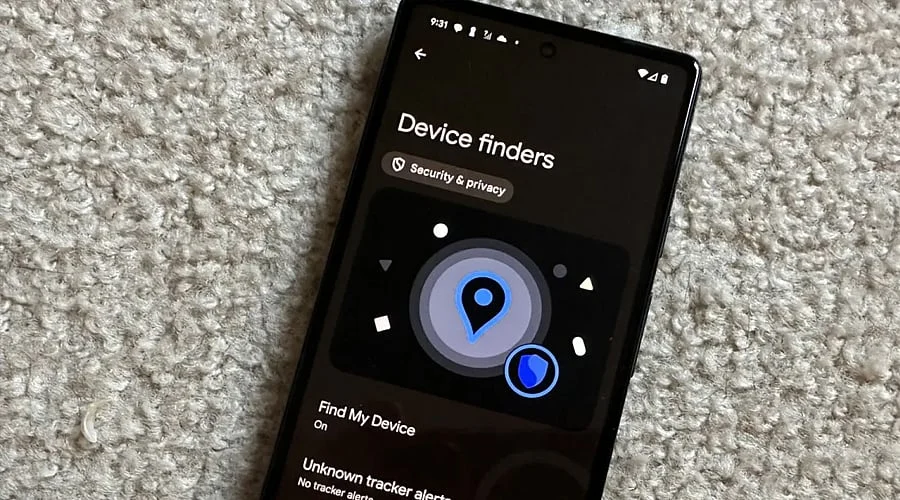
Open Google Find Hub: Access Google Find Hub using a computer, tablet, or another Android phone, and log in using the Google Account linked to your misplaced device. Choose your missing phone from the displayed list to view recovery features like location tracking, sound alerts, and remote locking.
Check Your Phone’s Location: Review the map within Google Find Hub to view the real-time or latest known position of your Android phone. This map helps determine whether the handset is located at work, home, somewhere nearby, or an unknown area.
Play a Sound: Click the sound-triggering feature if you suspect the phone is close by. The handset will ring at maximum volume, even if set to vibrate or silent, helping you find it inside bags, beneath furniture, or in an adjacent room.
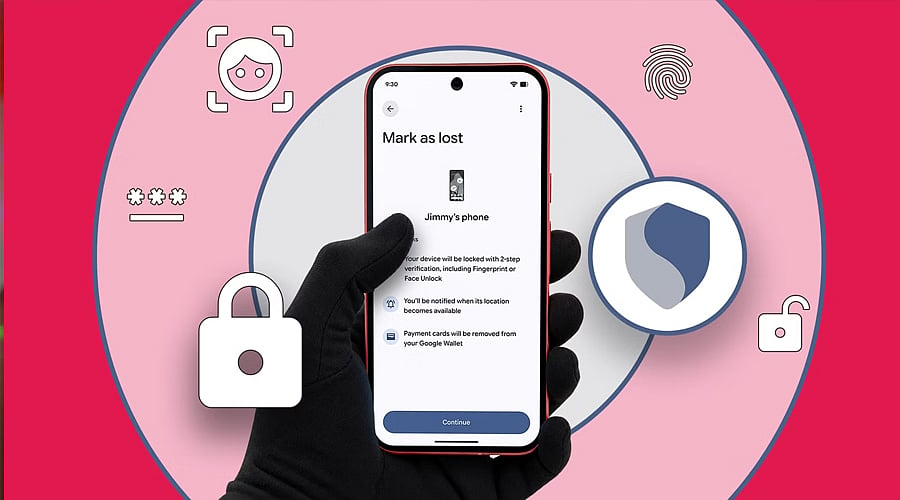
Mark Your Phone as Lost: Utilize Find Hub to lock your device remotely and designate it as lost. You have the option to display an alternate phone number or a custom message on the lock screen so a good Samaritan can reach out without gaining access to your private data.
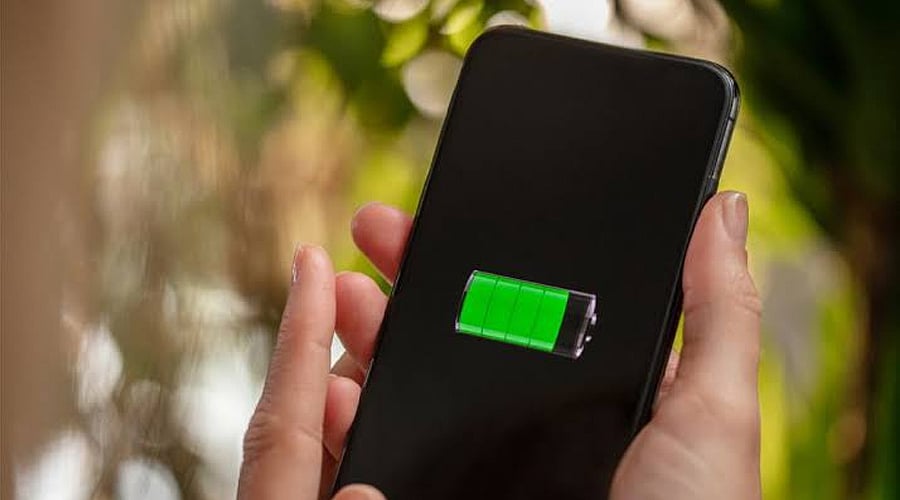
Check Battery and Connection: Inspect the device details displayed in Find Hub, which include the current battery percentage and latest connection details. A switched-on and connected phone will supply more accurate location tracking data as your search continues.
Call Your Phone: Dial your missing Android number from a separate phone and listen for any ringing or vibration. Should someone else have picked it up, they might answer and assist you in getting the device back securely.
Contact Your Mobile Operator: Reach out to your cellular service provider if you are unable to retrieve the phone promptly. Inquire about putting your mobile service or SIM on hold, and explore methods to safeguard your phone number against unauthorized usage.