Essential PS5 Settings to Review After Every Software Update
Discover the essential PS5 settings to review after every software update to ensure your privacy, display, audio, controller, storage, and power configurations remain properly optimized.
Once a fresh PS5 software update is installed, head into your Privacy settings to confirm who has visibility over your online status, profile details, gaming activity, and friends list. Because updates frequently roll out new options, auditing these controls ensures your account configurations match your exact preferences.
Review Display and Video Settings
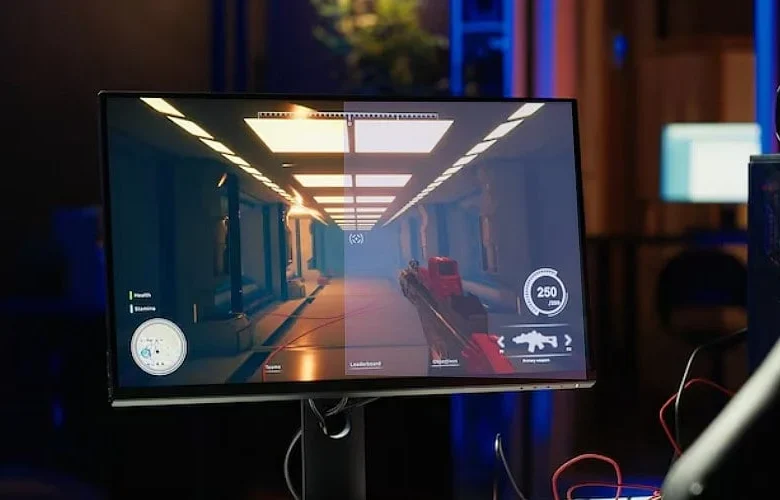
Navigate to your Screen and Video menu to verify that your HDR, resolution, VRR, and 120Hz output selections remain properly configured. For those utilizing a compatible monitor or TV, inspecting these parameters guarantees that your games keep leveraging your preferred display capabilities.
Check Sound Settings
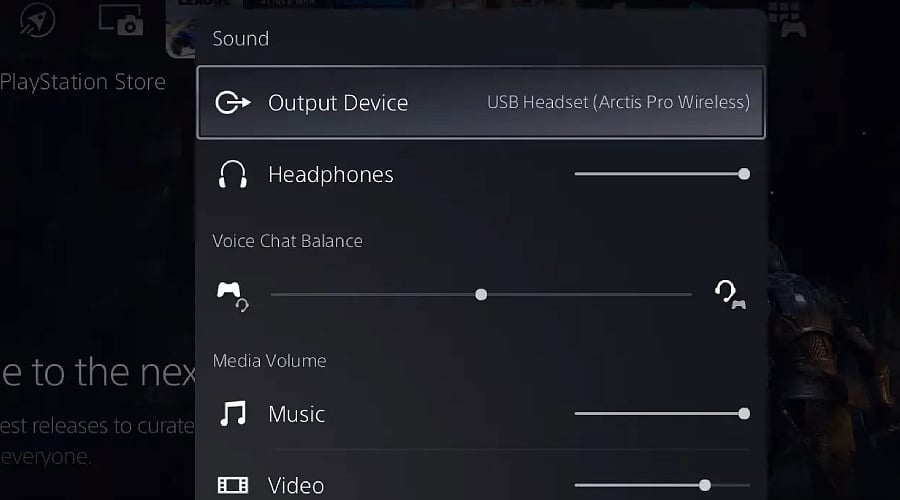
Inspect your Sound configurations following a console update to double-check your audio format, volume level, and designated output device. Players relying on a soundbar, home theater setup, or headphones can avoid unexpected audio shifts upon launching a game by running through this brief verification.
Review Controller Settings
Go to your Accessories and controller menus to ensure your DualSense configuration stays dialed in to your liking. Take a moment to examine trigger effect intensity, vibration strength, and any other available configurations. Should an update alter how controllers function or introduce fresh capabilities, fine-tuning these preferences will keep your gaming experience comfortable.
Check Storage and Game Data
With the new software installed, access your Storage menu to check the amount of available free space on your hardware. Because system updates can sometimes alter how system files or specific titles are managed, deleting unneeded applications, media, or games ensures you keep sufficient room open for upcoming downloads.
Review Power Saving Options
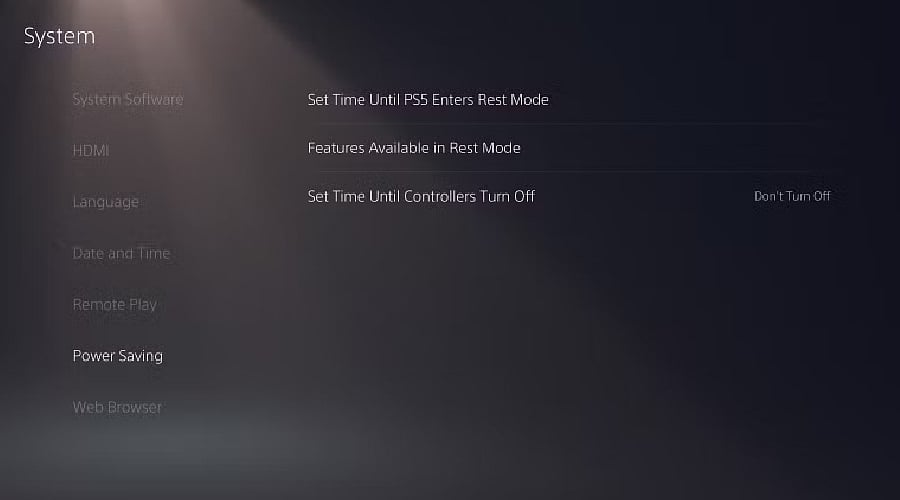
Examine your Power Saving preferences to verify that your console adheres to your desired shutdown and sleep rules. This lets you inspect the duration of inactivity required before the system enters Rest Mode, alongside choosing which functions stay active while the console rests.
Check System And Update Options
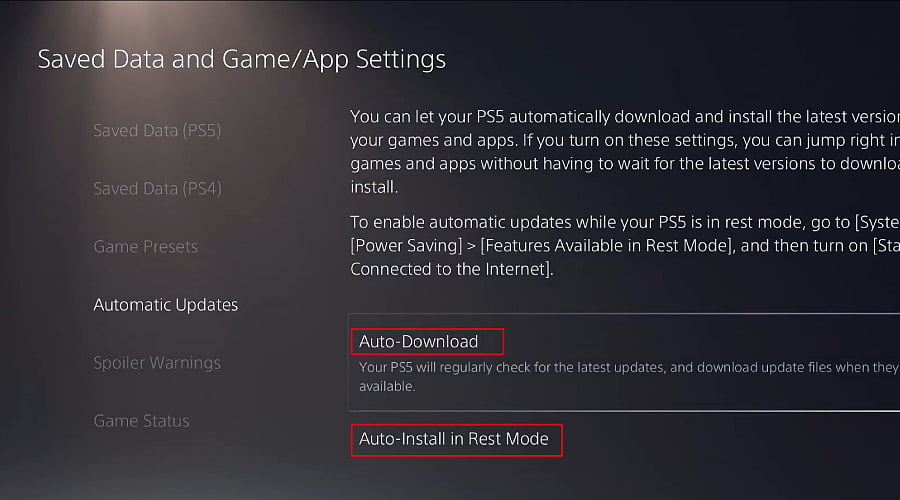
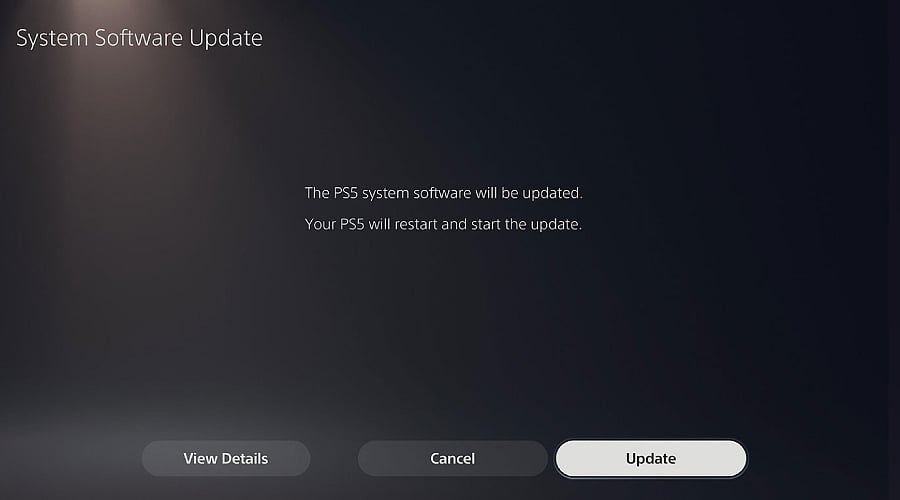
Lastly, visit the System settings to go over your network configurations, software details, and automatic update preferences. Verify that your console maintains a stable connection and that automatic downloads remain active if that is your preference. Performing this fast check following each major patch helps maintain your system’s readiness for upcoming software drops.
Join our WhatsApp Channel to get the latest news, exclusives and videos on WhatsApp