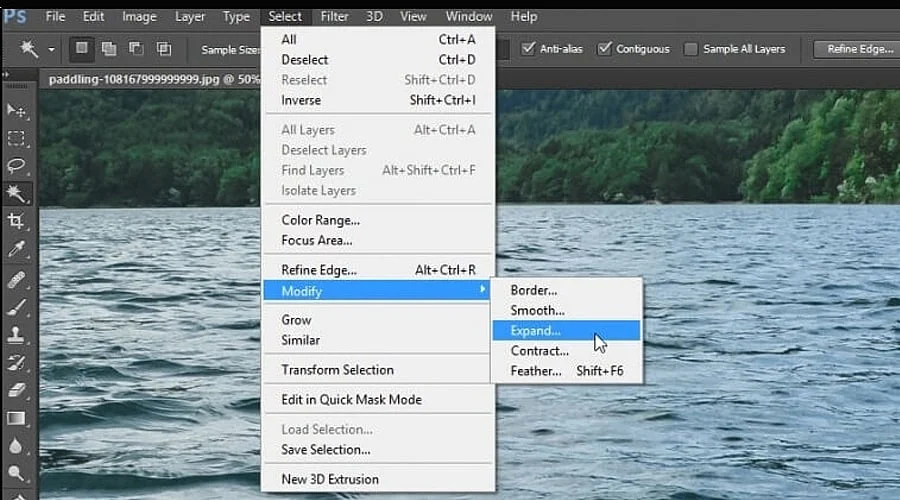
What Content-Aware Fill Does
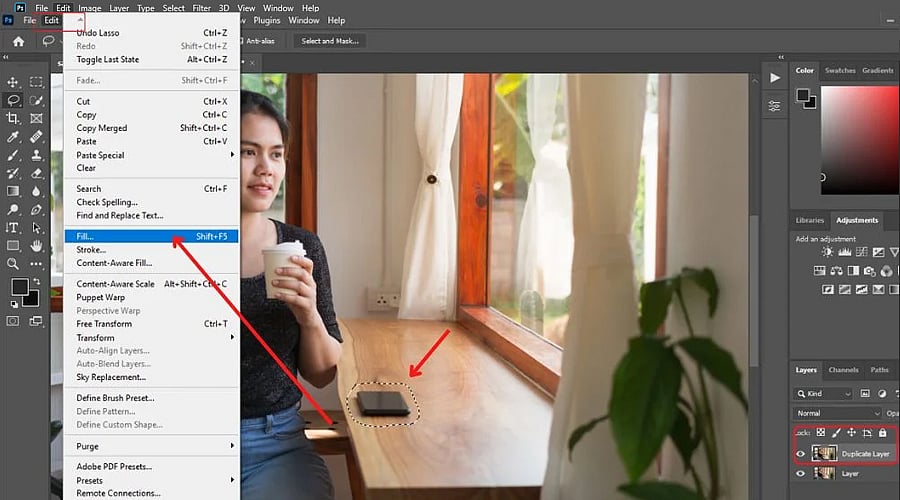
Photoshop’s Content-Aware Fill eliminates unwanted elements by substituting selected zones with pixels that match the surrounding picture. It performs best when the background is both simple and consistent. For novices, this feature is a way to clear away minor marks, objects, text, and other distractions without needing to rebuild the entire background by hand.
Simple Backgrounds
Content-aware fill excels when a watermark overlays a plain wall, sky, floor, or other uniform surface. Photoshop samples nearby pixels to generate a replacement area that merges smoothly with the environment. The more uncomplicated the background, the simpler it is for the function to generate a natural appearance.
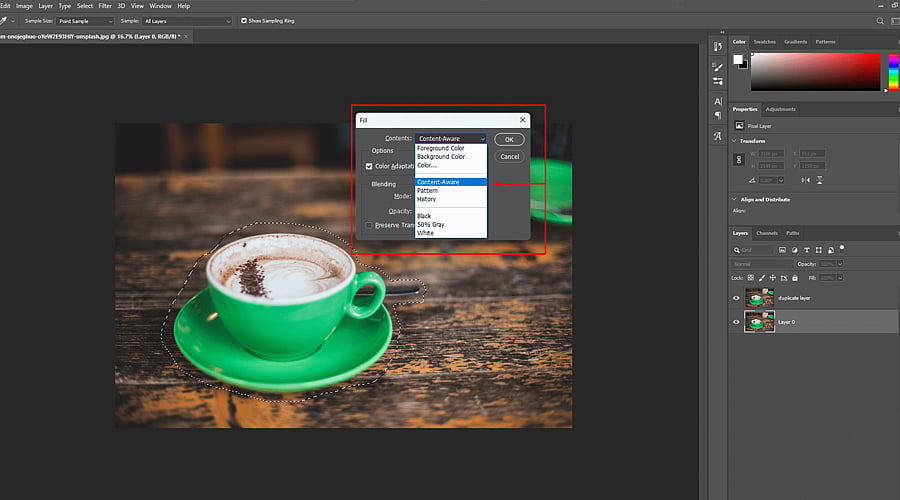
Text and Small Marks
Lightweight text, logos, and marks positioned on relatively steady backgrounds are frequently removable via Content-Aware Fill. Make sure to select the unwanted area carefully instead of blanketing a broad section of the photo. A tighter selection supplies Photoshop with more applicable surrounding data, helping to lower visible inconsistencies post-fill.
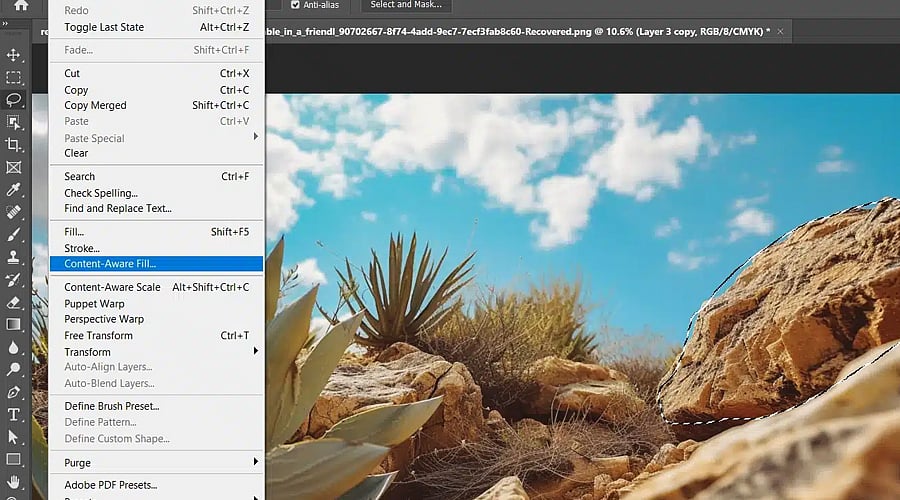
Complex Backgrounds
Content-Aware Fill faces restrictions whenever a watermark intersects with detailed subjects, faces, architectural structures, patterns, or other critical components. Erasing the mark might lead Photoshop to replicate neighboring details inaccurately. Under these conditions, beginners could find it necessary to adjust the selection, modify the sampling region, or manually retouch the impacted area.

Patterns and Edges
Watermarks that intersect straight boundaries, repeating patterns, or sharp lines often demand extra editing. Content-Aware Fill has the potential to fracture these structures while producing replacement pixels. Once the chosen zone is filled, check adjacent borders and repeating details closely. Tools like the Clone Stamp or Healing Brush are useful for fixing small spots that fail to integrate correctly.
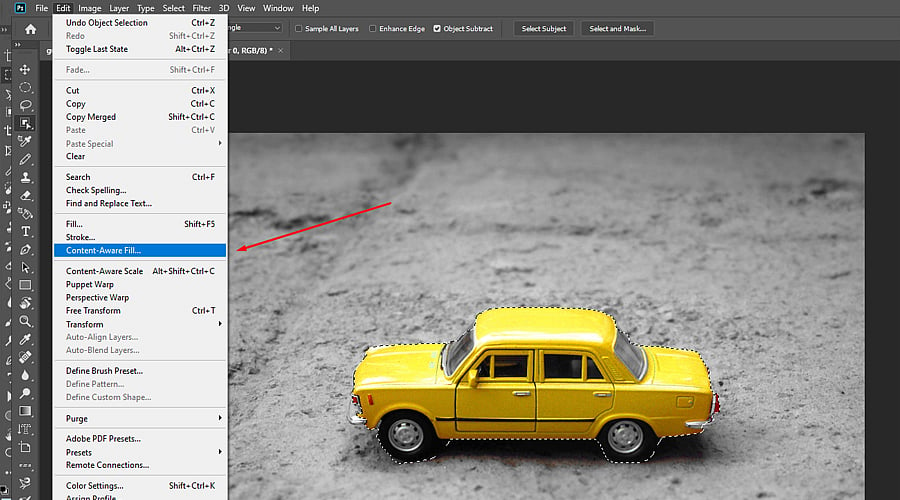
When It Needs More Work
Content-Aware Fill does not serve as a foolproof, single-click fix for every watermark. Outcomes vary according to the watermark’s dimensions, placement, transparency, and the surrounding visual context. Should crucial visual data remain hidden beneath the mark, Photoshop cannot reliably reconstruct it. Consequently, making multiple selections alongside manual retouching may prove essential.
Use It Carefully
Content-Aware Fill works best for eliminating unwanted features from pictures you legally own or hold authorization to alter. For users new to Photoshop, it acts as a handy method to practice making selections, sampling, retouching, and working with layers. Recognizing its boundaries ensures cleaner outcomes while preventing unrealistic expectations regarding automated image editing.