Overview:
-
Reverse image search helps verify authenticity, track sources, and find similar images quickly on smartphones.
-
Google Lens simplifies photo-based searches, identifying products, places, or visuals directly from iPhone and Android devices.
-
Clear, high-quality images enhance accuracy, yielding better matches and more reliable results during mobile reverse image searches.
Digital images travel across the internet within seconds. A photo shared on social media can pop up on multiple websites, often stripped of its original context or source. This frequently sparks questions about an image’s origin, whether it has surfaced elsewhere online, and what the picture genuinely depicts.
This is where Google reverse image search, driven by Google Lens, comes into play. Rather than typing words into Google Search, individuals can upload a photo, snap a new picture, or choose an image already stored on their device. Google will then present similar images, websites hosting the picture or related versions, details about objects within the frame, and other pertinent results.
Google Lens functions on both Android and iPhone through the Google app and Chrome. The exact choices can fluctuate slightly based on the device, app version, and Google Search experience.
What is Reverse Image Search?
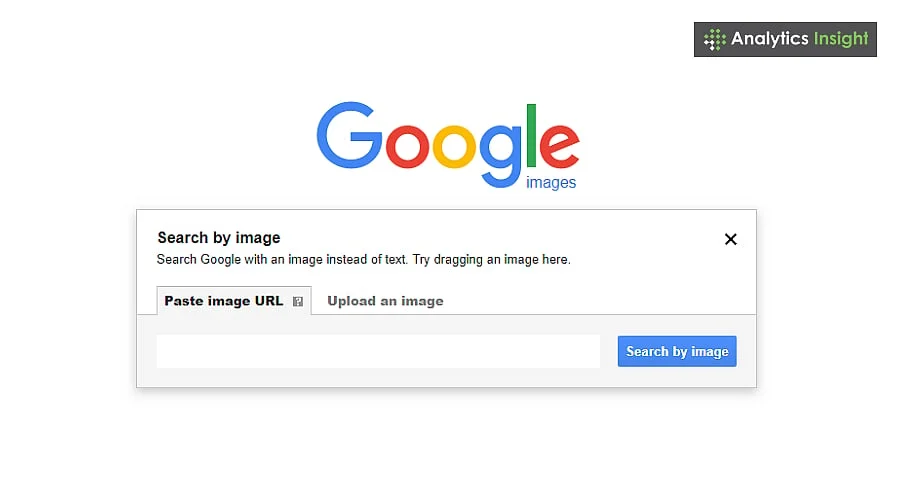
Reverse image search lets you upload or use a pre-loaded image to look for matching photos across the web. Instead of entering keywords, Google utilizes image recognition to spot matches, related visuals, and even websites where that picture appears. This capability proves especially helpful for:
-
Identifying people, objects, or structures.
-
Confirming whether a photo has been manipulated.
-
Tracking down copyright violations.
-
Discovering shopping links for items shown in a picture.
Option 1: Utilizing Google Images within Your Mobile Browser
Many users look for ways to execute a Google reverse image search on an iPhone to quickly check photos straight from their device. Both Android and iPhone users can carry out a reverse image search through their mobile browser.
-
Open a Browser: Launch Chrome or Safari and go to images.google.com.
-
Request Desktop Site: On mobile, Google Images may not automatically display the camera icon. To make it visible:
-
In Safari: Tap the ‘aA’ symbol in the address bar and select Request Desktop Website.
-
In Chrome: Tap the three-dot menu, then choose ‘Desktop site’.
-
Tap the Camera Icon: Once you switch to desktop mode, the camera icon will appear in the search bar.
-
Upload or Paste URL: You have the option to:
-
Paste a copied image link.
-
Upload a photo from your photo library by tapping Upload an image.
-
View Results: Google will show visually similar pictures, related websites, and potential sources.
Also Read: Reddit Overtakes Google in AI Search: Here’s Why It Matters
Option 2: Using Google Lens
Knowing how to perform a reverse image search on a phone can assist you in tracking down products, memes, or higher-resolution versions of pictures. Google Lens is built directly into the Google app and Chrome, streamlining the reverse image search process.
Through the Google App
-
Install or Open the Google App: The application is free to download for both iOS and Android users.
-
Tap the Lens Icon: Look for the small camera symbol located inside the search bar.
-
Upload or Snap a Photo: You can capture a new photo on the spot or pick one from your camera roll.
-
Explore Results: Lens will highlight objects in the photo and supply shopping links, similar pictures, and associated details.
Through Chrome Browser
-
Discover an Image Online: Long-press on any picture you encounter while browsing.
-
Choose ‘Search Image with Google Lens’: A panel will pop up containing matches and related insights.
This approach is more intuitive than using the desktop site workaround, making it ideal for daily use—particularly when shopping or attempting to identify something in a hurry.
Option 3: Third-Party Apps
While Google stands as the most dependable resource, several alternative applications—such as Reversee, TinEye, and CamFind—also offer reverse image search functions. Certain third-party programs provide extra filters or AI-powered recognition features. Even so, for the vast majority of people, Google Lens and Google Images prove more than adequate.
Tips to Get Better Results
-
Provide clear, high-quality images: Blurry pictures can lead to disappointing matches.
-
Crop unwanted parts: Trim away irrelevant sections of the image prior to uploading.
-
Experiment with angles: If your search fails to produce strong results, try using a different photograph.
-
Shop using Lens: When hunting for a specific merchandise item, Lens generally provides direct purchasing links.
Also Read: Understanding ChatGPT Vs Google: The Future of Search
Final Thoughts
Conducting a reverse image search on mobile devices has grown significantly simpler. By 2026, Google Lens serves as the primary Google tool for conducting photo-based searches, accessible through the Google app, Chrome, and—in supported workflows—Google Photos.
Whether your goal is to identify a product, locate similar photographs, look into a viral image or find out where a picture appears online, you can begin your query with a picture instead of text.
For the most effective outcomes, use a clear image, isolate the exact portion you wish to investigate, and cross-reference crucial findings with trustworthy sources. While a reverse image search offers valuable context, it should serve as a starting point for fact-checking rather than definitive proof of a photo’s authenticity.
You May Also Like:
Will Perplexity Replace Google as a Search Engine?
ChatGPT vs Google: Sam Altman Says GPT-5 Redefines AI Search
Google’s AI Search as Digital Gatekeeper: Who Controls Information Access Now?
FAQs
Q1. What is Reverse Image Search?
Reverse Image Search enables users to search the internet using an image rather than words. It helps uncover the origin of pictures, find similar visuals, authenticate photos, and pinpoint where an image is published across the web. Google and various other software platforms provide this capability.
Q2. How does Google Reverse Image Search work?
Google Reverse Image Search scans an uploaded photo to find visually similar pictures and linked websites. Utilizing sophisticated recognition technology, it empowers users to trace photo sources, check for duplicates, or unearth high-resolution versions of images instantly.
Q3. Is it possible to do a Reverse Image Search on my iPhone?
Yes, you can run a Reverse Image Search on an iPhone via Google Images inside a web browser or through Google Lens within the Google app. Both pathways allow you to upload or snap photos to discover web matches efficiently.
Q4. Is Google Reverse Image Search free to use?
Yes, Google Reverse Image Search is entirely free. You can upload pictures or paste URLs from either desktop or mobile devices—including iPhones—to receive immediate search results, matching images, and links at no cost and without needing a subscription.
Q5. Why should I use Reverse Image Search on Google?
Applying Reverse Image Search on Google assists in confirming authenticity, checking for plagiarism, locating origins, recognizing products, and searching for similar imagery. It serves as an essential tool for fact-checking, online shopping, research, and authenticating social media content.