Key Takeaways –
-
Adaptive layouts help Android apps adjust to different Googlebook window sizes and screen states.
-
Keyboard, mouse, and trackpad support helps apps fit the laptop experience.
-
Testing across window sizes and device states helps maintain reliable app performance.
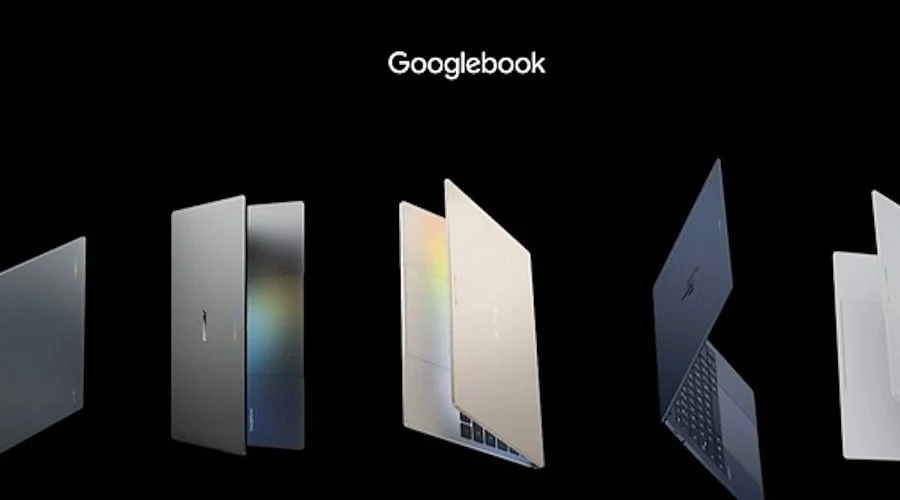
Googlebook brings Android apps to a laptop form factor, meaning software should avoid treating a laptop window like an oversized mobile screen. Google defines Googlebook as a fresh laptop category built on a shared Android foundation combined with desktop elements from ChromeOS.
Android Developers currently include Googlebook among the form factors that adaptive applications must support. The main objective remains straightforward: design a single app that dynamically responds to varying window sizes, input methods, and device states rather than relying on a static phone interface.
Start with Window Size Classes
Initial design decisions should stem from the application window rather than the physical display. Android adaptive guidelines utilize window size classes to assist programs in selecting the appropriate layout for any given dimension. While compact and medium widths accommodate a single pane, expanded widths can display related information across two panes. For instance, an email client can exhibit a message list alongside its corresponding detail view in a wide window, while scaling down to a single pane on narrower widths.
Jetpack Compose offers a direct framework for development teams handling this architecture. The Compose Material 3 Adaptive library provides APIs dedicated to window size classes, navigation systems, multi-pane layouts, and foldable states. A Kotlin codebase can leverage tools like NavigationSuiteScaffold, ListDetailPaneScaffold, and SupportingPaneScaffold to dynamically alter the user interface as window dimensions shift.
Build Around Large-Screen Layouts
Software designed for Googlebook should treat extra screen real estate as a valuable asset. Mobile phone screens typically demand a straightforward vertical flow, whereas a laptop window can comfortably host a side-by-side list and detail view, a primary workspace alongside a tool panel, or a multi-column grid. The list-detail layout pairs well with email clients, note-taking applications, file managers, and product catalogs. Meanwhile, the supporting-pane configuration is ideal for editors and dashboards requiring user controls adjacent to primary content.
Navigation strategies must likewise account for screen dimensions. A bottom navigation bar functions well in compact windows, whereas larger windows benefit from a navigation rail. NavigationSuiteScaffold can seamlessly alternate between these configurations depending on the available window space. Relying on fixed mobile navigation patterns often leaves excessive blank areas, making responsive navigation a vital component of initial layout planning rather than an afterthought.
Also Read – Swift vs Kotlin: Which Is Better to Learn in 2026?
Support Keyboard, Mouse, and Trackpad Input
Googlebook transforms the traditional input environment. Touch functionality remains relevant, but a laptop layout introduces a physical keyboard, mouse, and trackpad. Android recommendations urge developers of adaptive apps to accommodate non-touch inputs, including keyboard navigation, mouse interactions, trackpad clicks, scroll controls, and stylus usage.
Text input fields should process keyboard entries naturally without requiring cumbersome workarounds, and focus traversal order must remain logical across menus, buttons, lists, and dialog boxes. Furthermore, implementing keyboard shortcuts helps productivity tools achieve an authentic desktop feel.
Test Resized Windows from the Start
A robust Googlebook application requires rigorous testing that goes beyond a single laptop display dimension. Software must seamlessly handle portrait and landscape orientations, split-screen displays, desktop window adjustments, and varying font or display density configurations. Android supplies virtual resizable devices and form-factor emulators specifically for these evaluation procedures.
Googlebook integration also carries a specific ecosystem deadline tied to program compliance. The Android Apps Experience Program mandates Googlebook as a required form factor by March 1, 2027, establishing Tier 2 Adaptive Optimized quality as the baseline requirement for enrolled applications. The same policy clarifies that distributing the app on Google Play for this form factor does not automatically become compulsory due to this rule.
Also Read – High-Paying Jobs for Developers Skilled in Kotlin
Use Googlebook’s Desktop Strengths
Quality applications should also align with how Googlebook interacts with Android phones. Google notes that Googlebook permits users to access phone storage via the Files app, preserve workflows across multiple devices, and run mobile apps inside desktop windows through Cast My Apps.
Furthermore, Googlebook incorporates Antigravity—an AI agent development platform—alongside a complete Linux terminal for developer tools. This transforms Googlebook into far more than an expanded mobile display, establishing a comprehensive laptop environment suited for intensive software creation and desktop productivity.
Ultimately, a Googlebook application succeeds when its interface abandons the appearance of a stretched mobile layout. Window size classes ought to dictate layout transitions, Compose Material 3 Adaptive should manage core structural patterns, and testing must encompass actual desktop scenarios. By establishing these pillars, a single Android codebase can effortlessly transition between phones and Googlebook hardware without enforcing identical layouts across every display.
FAQs
1. What is Googlebook?
Googlebook is a laptop-focused platform that brings Android apps into a desktop-style environment.
2. Why do Android apps need adaptive layouts for Googlebook?
Adaptive layouts help apps respond to different window sizes instead of using one fixed phone layout.
3. Which input methods should Googlebook apps support?
Apps should support touch, keyboards, mice, trackpads, and other relevant input methods.
4. How can developers test Googlebook apps?
Developers can test different window sizes, orientations, split-screen states, and display settings with Android testing tools.
5. What makes a Googlebook app feel natural?
A Googlebook app should use its larger workspace, support desktop input, adapt its navigation, and maintain clear layouts across window sizes.