Overview
-
WhatsApp Web lets users access their chats directly through a desktop browser.
-
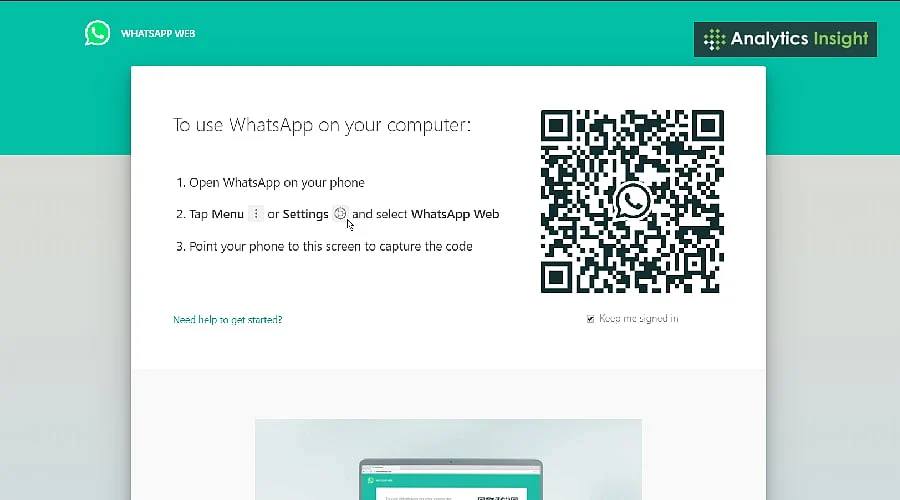
Syncing is straightforward—simply scan the QR code via the mobile app.
-
It is ideal for multitasking, sharing files, and managing conversations more efficiently.
WhatsApp remains immensely popular for daily communication with family and friends. While the mobile app is the primary choice for most, many users prefer interacting with the platform on a larger computer screen, which is where WhatsApp Web comes into play. Linking WhatsApp to a PC is a seamless process.
This setup simplifies typing, makes sharing media and documents much easier, and allows you to handle multiple tasks simultaneously without constantly shifting between your phone and computer. For those who wish to skip downloading an app, here is a step-by-step guide on how to use WhatsApp Web through a phone browser.
What is WhatsApp Web?
WhatsApp Web essentially brings WhatsApp to your computer. It mirrors all your mobile chats and messages, keeping everything completely synchronized. Managing WhatsApp Web on mobile is especially helpful for users who juggle multiple applications at once.
Because it operates directly inside your web browser, installation is completely unnecessary. All you need is a reliable internet connection and a standard browser.
Also Read: WhatsApp to Launch Instagram-Style ‘Close Friends Status’ for Exclusive Sharing
How to Get on WhatsApp Web
Getting started on WhatsApp Web is easy, and users can now link their accounts using multiple methods—either the traditional QR code or a phone number.
Using the QR Code:
-
Launch a supported web browser such as Chrome, Edge, Safari, or Firefox.
-
Navigate to web.whatsapp.com.
-
Open WhatsApp on your main phone and navigate to Linked Devices.
-
Tap Link a Device and complete any required authentication.
-
Scan the QR code displayed on the WhatsApp Web page.
-
Once linked, your chat threads will load on the computer.
Using Your Phone Number:
-
Navigate to web.whatsapp.com.
-
Select Link with phone number.
-
Input the phone number tied to your WhatsApp account.
-
WhatsApp Web will generate an eight-character code.
-
Open WhatsApp on your primary phone and go to Linked Devices.
-
Choose Link a device and select the phone-number linking option.
-
Type in or confirm the provided code to finalize the connection.
WhatsApp permits up to four linked devices alongside your primary smartphone. These linked devices continue to function even if your main phone loses internet connectivity.
How to Link WhatsApp Web Without Scanning a QR Code
WhatsApp Web also provides the flexibility to link a device via phone number instead of scanning a QR code, an option currently available on WhatsApp Web and WhatsApp for Windows.
To utilize this, open WhatsApp Web and choose Link with phone number. Type in the phone number linked to your account, and an eight-character code will appear on the screen.
Next, open WhatsApp on your primary phone, head over to Linked Devices, pick Link a device, select the phone-number linking method, and input the code shown on your computer screen. Following authentication, your computer will successfully sync with your WhatsApp account.
This alternative proves particularly useful when scanning a QR code is impractical or unavailable.
Things You Can Do with WhatsApp Web
Many users look into running WhatsApp Web on mobile for messaging convenience without device switching. Beyond merely displaying chats, WhatsApp Web packs several practical features to enhance the messaging experience:
Chat Syncing: Messages update rapidly across both your phone and computer as they are sent and received.
File Sharing: Directly send documents, photos, and videos straight from your computer.
Typing with a Keyboard: Drafting longer messages is far simpler using a physical keyboard, alongside computer notifications so you never miss important updates.
Chat Switch: Moving between different conversations is significantly easier with expanded screen space.
These capabilities render WhatsApp Web highly effective for both personal communication and professional tasks.
Why Should You Use WhatsApp Web?
A seamless WhatsApp Web login guarantees instant connectivity and continuous synchronization. Several key benefits accompany the use of WhatsApp Web:
Do More: Multitasking becomes effortless since you can review messages while working on other applications.
Quick File Sharing: Share files straight from your PC without needing to transfer them to your phone beforehand.
No App Needed: Because it runs directly inside your internet browser, installing separate software is unnecessary.
Perfect for work: It helps minimize phone distractions when you need to concentrate on computer-based work.
Things to Remember
WhatsApp Web does not require your primary mobile device to stay connected to the internet once the device linking is finished. However, WhatsApp states that you must occasionally use your primary phone to keep linked devices active; failing to use the primary phone for over 14 days will cause WhatsApp to log out linked devices.
Additionally, WhatsApp Web supports voice and video calls across compatible browsers and operating systems. Users can place and receive both one-on-one and group calls directly inside the browser without downloading extra software.
For the optimal calling experience, ensure your computer has an active internet connection, a microphone, and audio output. WhatsApp also advises wearing a headset to minimize potential audio echo.
When accessing WhatsApp Web on a public or shared computer, always inspect your linked devices and sign out of any sessions you no longer require.
How to Make Calls on WhatsApp Web
WhatsApp Web now features voice and video calling capabilities, substantially increasing the browser version’s versatility. Users can initiate individual and group calls right from WhatsApp Web without installing a dedicated application. Functionalities include screen sharing, reactions, and a dedicated Calls tab featuring call history and favorites.
To start a call, open any individual chat, select the Call button, and choose either Voice or Video. You can mute your microphone, toggle between voice and video, and terminate the call straight from the browser interface.
According to WhatsApp, web calling is supported on Windows, Linux, and macOS using compatible builds of Chrome, Edge, Safari, and Firefox. Because this feature is rolling out progressively, availability may differ among users.
Furthermore, WhatsApp Web supports screen sharing during calls, making it a valuable tool for collaboration, presentations, and remote discussions. All calls remain end-to-end encrypted.
How to Log Out of WhatsApp Web
Signing out is essential whenever you use WhatsApp Web on shared, public, or workplace computers that others might access.
To log out directly from the computer, open WhatsApp Web, click the menu icon above your chat list, and pick Log Out.
Alternatively, you can remotely remove a linked device using your phone. Open WhatsApp, go to Linked Devices, select the specific computer or browser session you wish to remove, and tap Log Out.
For enhanced account security, periodically audit your list of linked devices and remove any sessions you do not recognize. WhatsApp additionally suggests turning on two-step verification for added account protection.
Conclusion
WhatsApp Web is exceptionally convenient for individuals who spend significant time at their computers. It facilitates chatting on a larger display while keeping all conversations fully synchronized. Simple to configure and packed with helpful features, it operates smoothly provided you have a stable internet connection, resulting in a streamlined messaging experience. Whether for leisure or business, WhatsApp Web simplifies staying connected.
You May Also Like:
How to Use WhatsApp Web on Android Without QR Code
WhatsApp Beta Brings Voicemail-Like Feature for Missed Calls
How to Use WhatsApp Without a Phone Number: Smart Tricks
FAQs:
1. Q: What is WhatsApp Web used for?
A: It allows users to access WhatsApp chats on a computer through a browser.
2. Q: How can WhatsApp Web be connected?
A: By scanning the QR code on web.whatsapp.com using the WhatsApp app on a phone.
3. Q: Does WhatsApp Web work without the phone?
A: No, the phone must stay connected to the internet.
4. Q: Can calls be made on WhatsApp Web?
A: No, voice and video calls are not supported on the web version.
5. Q: How can WhatsApp Web be logged out securely?
A: By using the ‘Log Out’ option on the desktop or from the phone’s linked devices menu.