Key Takeaways
-
WhatsApp Web lets you chat straight through any web browser.
-
The setup process takes less than two minutes.
-
Applying a few handy tips can greatly enhance your productivity on the platform.
As a messaging platform boasting more than 2.7 billion monthly active users globally, WhatsApp serves as much more than a simple app—it is a vital lifeline for daily communication. While most people are familiar with the mobile version, fewer know about its browser-based counterpart, WhatsApp Web.
This tool mirrors your conversations on a computer monitor, facilitating easier typing, file sharing, and continuous connectivity without forcing you to constantly pick up your phone. For anyone spending long hours working on a laptop or desktop, WhatsApp Web provides a major productivity boost.
What is WhatsApp Web?
WhatsApp Web is the browser-based edition of WhatsApp that reflects a user’s mobile chats. All messages display on the computer screen, allowing individuals to send and receive texts, voice notes, photos, and more.
Because it operates in real-time, any activity on the user’s phone is mirrored on the web platform. Much like the mobile application, WhatsApp Web maintains security and encryption.
Key Features of WhatsApp Web
Notable features of WhatsApp Web include:
-
Rapid Sync: Chats show up instantly within the browser.
-
Sharing Media: Users can send and receive files, images, videos, voice messages, and documents.
-
Keyboard Shortcuts: Navigating and replying is faster using a full keyboard.
-
Desktop Notifications: These help users stay updated without the need to switch tabs constantly.
-
Group Chats: Users can manage group conversations smoothly.
-
Status View: Contacts’ status updates can be viewed directly.
Statista indicates that over 100 million users access WhatsApp Web every month, with popularity highest among those working on laptops or desktop computers.
Also read: Top New Features on WhatsApp.
WhatsApp Web Now Supports Voice and Video Calls
Users can initiate voice and video calls directly from their browser, simplifying computer-based communication. It supports one-on-one or group video and voice calls, screen sharing, and call reactions. The web edition also features a dedicated Calls tab that houses favourites and call history. These calls are secured by end-to-end encryption, and no separate desktop application is required to use this functionality.
How to Use WhatsApp Web?
The WhatsApp Web setup is fast and straightforward, involving the following steps:
-
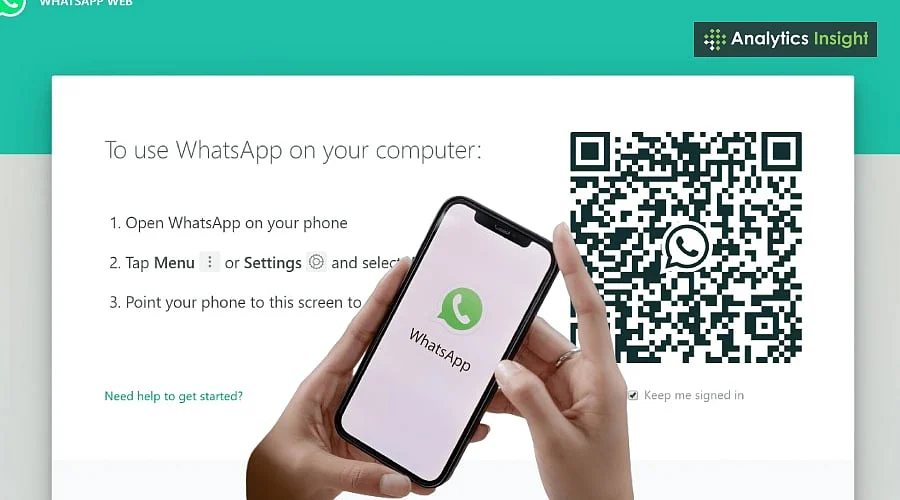
Open a web browser and navigate to web.whatsapp.com
-
A QR code will appear on the desktop monitor.
-
Open the WhatsApp application on your mobile device.
-
Tap the menu icon (three dots at the top) and select ‘Linked Devices’.
-
Tap on ‘Link a Device’.
-
Use the smartphone camera to scan the QR code displayed on the desktop screen.
Once completed, your chats will immediately populate the screen.
How Can You Use WhatsApp Web More Effectively?
-
Pin Chats: Right-click to pin important contacts to the top.
-
Use Shortcuts: Press Ctrl + N to open a new chat, or Ctrl + Shift + ] to jump to the next chat.
-
Log Out Remotely: If you misplace your laptop, you can log out of your WhatsApp session at any time directly from your phone.
-
Use Dark Mode: To minimize eye fatigue, go to Settings, choose Theme, and select Dark.
-
Mute Chats: Silence noisy group chats to eliminate distractions.
These simple WhatsApp tips help make messaging seamless and fast.
Is WhatsApp Web Secure?
WhatsApp Web is secure, employing end-to-end encryption just like the mobile app. Even so, it is wise to avoid using shared or public computers and to always log out after your session ends. To log out, click the Menu (the three dots located in the top left corner) and choose ‘Log out’.
Also read: Try These WhatsApp Security Settings to Protect Your Encrypted Chats.
WhatsApp Web Limitations You Should Know
While WhatsApp Web is convenient for day-to-day messaging, it lacks certain features found on the mobile app. Broadcast lists and live location, for instance, may be unavailable. Users must still rely on the mobile version of WhatsApp for specific account settings and features.
Conclusion
WhatsApp Web is much more than a simple extension of the app; it provides a streamlined way to handle both work tasks and everyday conversations from a single screen. With its encrypted messaging, effortless setup, and time-saving tools, it keeps users connected and productive.
For business professionals, students, and multitaskers alike, utilizing WhatsApp on the web offers more than just convenience—it accelerates and smartens communication.
Join our WhatsApp Channel to get the latest news, exclusives and videos on WhatsApp
-