Overview:
-
According to Apple’s support page, Apple Intelligence can require up to 14GB on newer iPhone, iPad, and Mac models. Actual usage is frequently lower, measuring around 6GB on an iPhone during CNET’s testing.
-
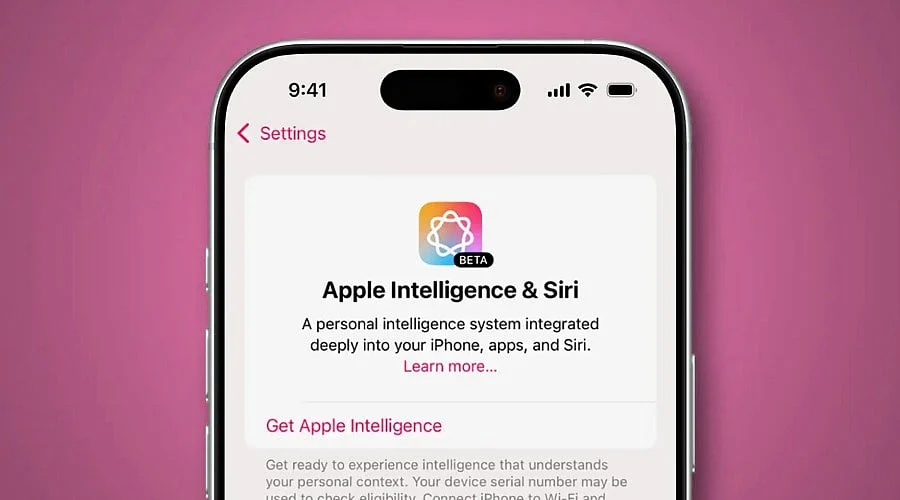
Users can disable the feature directly within their iPhone settings. For iOS 27 and later, navigate to Settings, tap Siri, and select Turn Off Siri. For iOS 26 and earlier, go to Settings, tap Apple Intelligence & Siri, and toggle the switch off.
-
Disabling the feature removes capabilities such as Writing Tools, notification summaries, Image Playground, and Siri AI. Standard iPhone functions remain operational, and the feature can be reactivated at a later time.
Individuals who do not rely on Writing Tools, notification summaries, and Siri AI sacrifice very little by turning the feature off. This guide details the storage requirements, step-by-step instructions for each iOS version, and the associated trade-offs.
How Much Storage Apple Intelligence Uses
Apple’s support page indicates that Apple Intelligence may require up to 14GB on newer iPhone, iPad, and Mac models. Other compatible devices can use up to 8GB, while the Apple Watch requires up to 1.5GB. Actual figures are frequently lower. CNET reported that the updated Siri AI occupies about 6.4GB on a test iPhone and 17.9GB on a MacBook Neo.
Pocket-lint noted that users can reclaim well over 5GB on an iPhone by deleting the on-device models. Early versions required roughly 4GB, and MacRumors subsequently reported 7GB per device, equating to 21GB across an iPhone, iPad, and Mac combined. The file size varies depending on the hardware and iOS version, and it typically grows as Apple introduces new features.
Steps to Turn Off Apple Intelligence in iPhone Settings
Apple launched iOS 27 in September, introducing a revamped Siri AI built on Apple Intelligence. On iPhones running iOS 27 or later, users open Settings and tap Siri, then select Turn Off Siri and follow the on-screen prompts. On iOS 26 and earlier, users open Settings, tap Apple Intelligence & Siri, and turn off the Apple Intelligence toggle.
A confirmation prompt will appear, requiring users to tap Turn Off Apple Intelligence. Because menu labels can vary across software versions, the option may be located near the bottom of the Siri menu. Users who prefer the traditional voice assistant can select Siri Classic instead.
How to Check iPhone Storage After the Change
Storage space is not always recovered immediately. Pocket-lint explained that downloaded AI models are gradually deleted over time after the feature is turned off. To verify, users can navigate to Settings, select General, choose iPhone Storage, and tap iOS.
Apple Intelligence is listed there alongside its file size. Once the feature is disabled, this entry should eventually disappear. Users can also delete large applications and old video files to free up additional space.
What Users Lose When the Switch Goes Off
Disabling the feature removes Writing Tools, notification summaries, Image Playground, and the latest Siri AI capabilities. Visual Intelligence and Genmoji are also removed. Standard iPhone operations continue to function normally.
Users who wish to retain specific tools can disable individual features—such as email summaries or ChatGPT integration—from the same settings menu. Choosing this alternative saves less storage space, as the core AI models remain stored on the device.
How to Turn It Back On Later
Apple Intelligence can be re-enabled at any time. On iOS 27, users select Try Siri AI. On previous software versions, they flip the same toggle back on. The device will likely need to download the necessary models again, so users should ensure they have sufficient available storage and an active Wi-Fi connection.
Final Thoughts
Anyone looking to disable Apple Intelligence can complete the process within their iPhone settings in under a minute, freeing up several gigabytes of space. The trade-off involves losing features like Writing Tools and Siri AI. Users who rarely use these tools stand to gain more than they sacrifice. Checking iPhone storage following the adjustment confirms the results, and the functionality can be turned back on whenever desired.
FAQs
1. How much iPhone storage does Apple Intelligence use?
Apple states that it can require up to 14GB on newer models and up to 8GB on other supported devices. During CNET’s evaluation, the new Siri AI utilized about 6.4GB on an iPhone. The footprint varies by device and iOS version.
2. How do I turn off Apple Intelligence on my iPhone?
On iOS 27 or later, open Settings, tap Siri, and select Turn Off Siri. On iOS 26 and earlier, open Settings, tap Apple Intelligence & Siri, and switch off the Apple Intelligence toggle. Specific menu names may vary by software version.
3. Will my storage free up right away?
Not necessarily. The downloaded AI files are uninstalled gradually after the feature is turned off. Users can monitor progress by navigating to Settings, General, iPhone Storage, and then iOS.
4. What features will I lose?
Writing Tools, notification summaries, Image Playground, Visual Intelligence, Genmoji, and the newest Siri AI capabilities will stop working. Everyday iPhone operations remain unaffected.
5. Can I turn Apple Intelligence back on?
Yes. On iOS 27, choose Try Siri AI. On older versions, toggle the switch back on. The phone will likely need to re-download the models, so maintain adequate free space and a stable Wi-Fi connection.