Take a Full Screenshot
Instantly capture your entire Chromebook screen by pressing Ctrl + Show Windows. Because the screenshot saves automatically, this method works wonderfully for recording on-screen details, saving receipts, or sharing error messages.
Capture a Partial Screenshot
Press Shift + Ctrl + Show Windows and drag your cursor to highlight just the specific section you want. This shortcut allows you to grab a single image, chart, or message directly, eliminating the need to crop a full screenshot later and helping you share streamlined visuals more quickly.
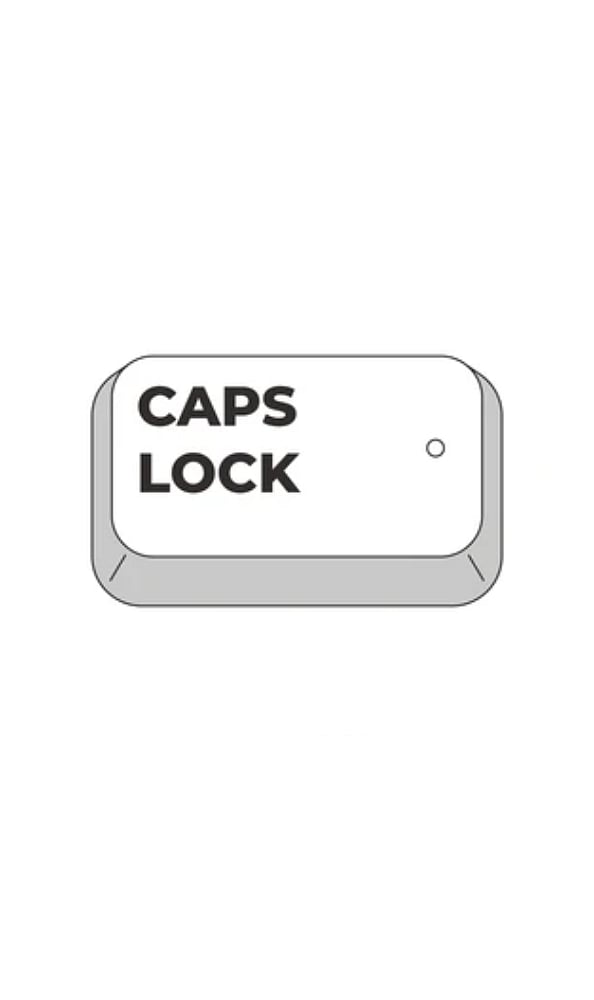
Turn Caps Lock On or Off
Because Chromebooks lack a physical Caps Lock key, you can activate or deactivate it at any time by pressing Search + Alt. This lets you seamlessly type capitalized passages, passwords, or headings without interrupting your typing rhythm.
Open the Shortcut Helper
Bring up ChromeOS’s integrated shortcut helper by pressing Ctrl + Alt + /. It consolidates all available keyboard commands into a single view, allowing you to discover new shortcuts instantly without navigating through settings menus or browsing online manuals.
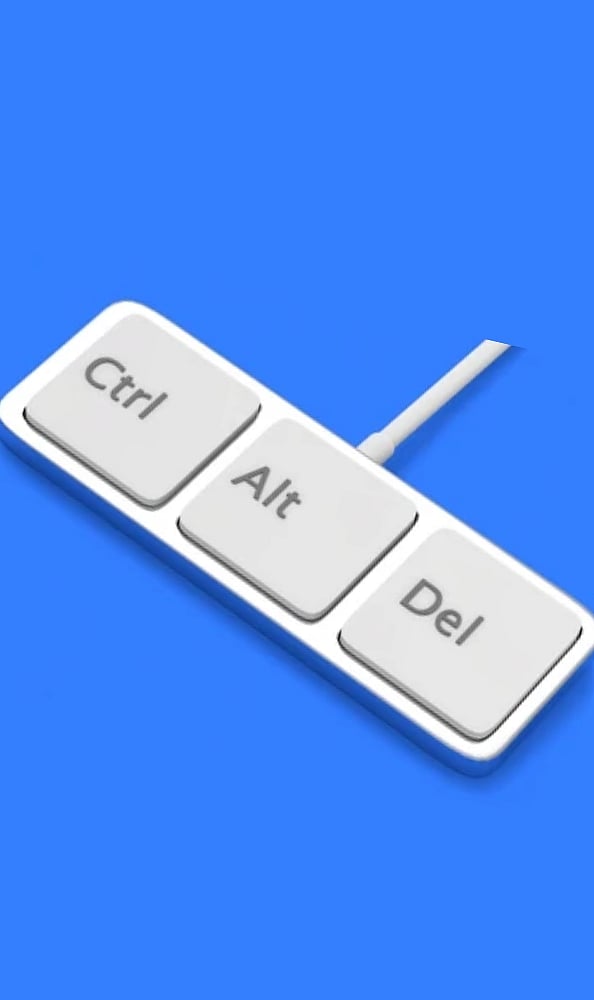
Switch Between Open Windows
Cycle swiftly through your active browser windows and applications by holding Alt and pressing Tab. This function proves particularly handy when checking references, cross-referencing documents, or toggling between productivity and messaging applications without relying on your mouse.
Snap Windows for Multitasking
Dock your active window to the left half of the display with Alt + [, or anchor it to the right with Alt + ]. By placing two programs side by side, you can easily conduct research, write, or participate in a video conference while keeping all your materials in view.
Read More Stories!

Join our WhatsApp Channel to get the latest news, exclusives and videos on WhatsApp