Discover essential details for using Telegram Web safely and efficiently, including official login methods via QR code or phone number, cloud chat synchronization, and crucial security practices.
Telegram Web enables users to access their conversations straight from a desktop browser without needing to install an application. Always use the official Telegram Web portal and verify the browser’s address bar prior to inputting any credentials. Steer clear of dubious links that might mimic Telegram in an effort to misappropriate account data.
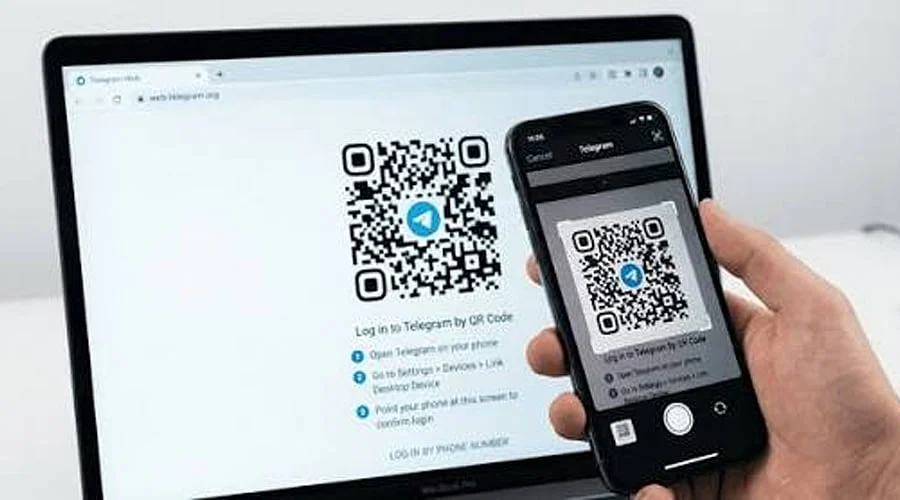
Logging into Telegram Web can be accomplished through two straightforward methods. Utilizing a QR code is the swiftest approach: simply open Telegram on your mobile device, navigate to Settings > Devices > Add Device, and scan the QR code displayed on your desktop monitor to authorize access.
Alternatively, users have the option to sign in using their telephone number. Input the number alongside the appropriate country code and adhere to the subsequent verification prompts. Telegram may transmit the sign-in code directly to the Telegram application on a previously linked device. Please note that a Telegram account must be set up prior to utilizing the web version.
Official browser clients, specifically WebK and WebA, are provided by Telegram. These run natively within web browsers like Chrome, Edge, Firefox, and Safari, granting users access to Telegram minus the necessity of installing desktop software.
Active cloud chats remain synchronized across all linked devices via Telegram. Messages, media files, photos, and videos synchronize seamlessly between smartphones, tablets, and personal computers, enabling users to carry on discussions via the browser without requiring the phone to remain close by.
Maintaining security following a desktop login is vital. Navigate to Telegram Settings > Devices to review active sessions and disconnect any unrecognized or unneeded hardware. Furthermore, implementing Two-Step Verification provides an additional password security layer to safeguard the profile.
While Telegram Web serves well for rapid browser-based communication, the dedicated native desktop application delivers a richer feature set. For frequent desktop users, the official Telegram Desktop application supplies more comprehensive functionalities than its web counterpart. When utilizing a public or shared computer, always remember to sign out or terminate the active session.