How to Save Your Parking Location Using Google Maps
Learn how to use Google Maps to save your parking spot easily. Discover steps to drop a pin, add custom notes, set timers, and automatically log your location using iPhone or CarPlay.
Losing track of your vehicle can be a hassle, particularly in massive lots or unfamiliar zones. Fortunately, Google Maps features a built-in tool that allows drivers to log their parking coordinates. Right after parking, you can tag the exact spot inside the app to locate your car easily afterward.
How To Save Your Parking Location
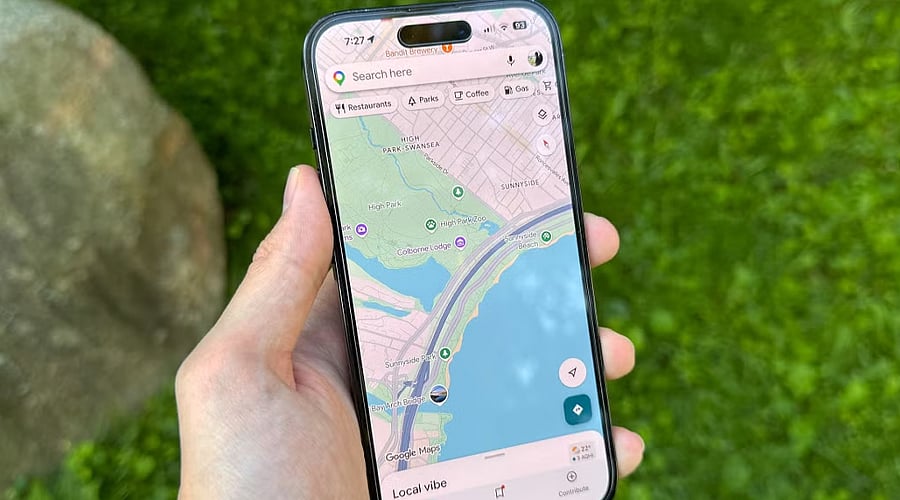
Once parked, launch Google Maps and tap the blue dot that indicates your present position. Choose “Save parking” from the menu of choices. The application will drop a pin on the map to mark where your car is parked, enabling you to navigate back to it later.
Add Notes To Your Parking Spot
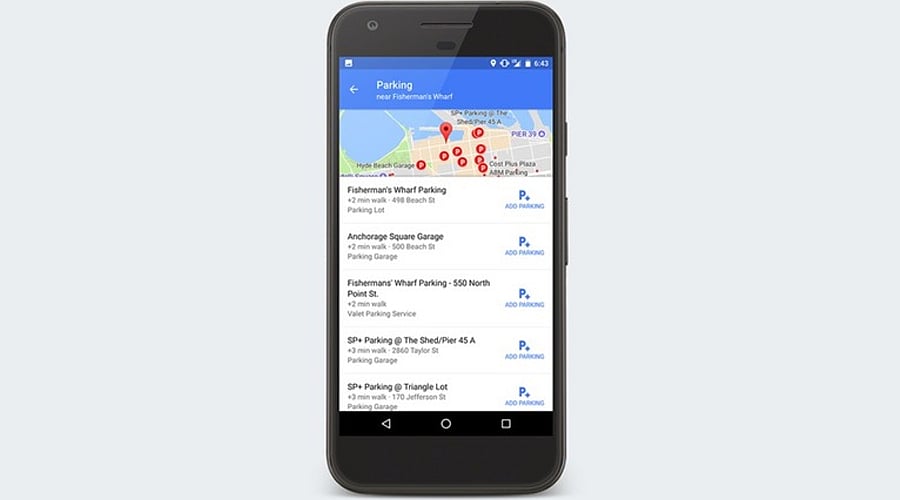
Your saved parking spot can also be customized with extra details. Google Maps allows you to edit the spot, share the location with others, type in custom notes, and set a countdown timer. Such features prove handy when leaving a vehicle in sprawling areas like airports, massive shopping malls, or complex facilities where pinpointing your car is tough.
Find Your Car Using Google Maps
When you are ready to head back to your vehicle, open Google Maps and tap on the designated parking marker. The program highlights the saved spot on the map to guide you right to your car. Keep in mind that location precision may vary depending on the strength and availability of location services.
iPhone Can Save Parking Automatically
For iPad and iPhone users, Google Maps offers automatic parking logging as well. By linking your device to your car via a USB cable, Bluetooth, or CarPlay, the app can automatically log your parking spot once that connection drops. This saved parking point will stay accessible for up to 48 hours.
Enable Motion-Based Parking Detection
People using iPhones can also configure a setting that lets Google Maps detect parking through motion data. Simply open the app, tap your profile picture, go to Settings, and choose Navigation. From there, you can toggle on the feature to “Let Maps use your motion to save your parking” if it is accessible.
Remove The Parking Location Later
As soon as you get back to your automobile, you can delete the saved parking spot from Google Maps. Just tap the parking icon and select the option to clear it. Drivers retain the ability to tweak or share the logged spot, and built-in timers help keep tabs on parking sessions subject to time restrictions.
Join our WhatsApp Channel to get the latest news, exclusives and videos on WhatsApp