Overview
-
Utilizing labels and filters in Gmail simplifies email management and saves time every day.
-
Clearing out messages in bulk based on category, date, or sender keeps the inbox neat.
-
Routine Gmail organization enhances productivity and guarantees critical messages are never overlooked.
An overflowing inbox buries essential messages beneath promotions and newsletters. Learning how to mass delete emails in Gmail is crucial for a thorough cleanup. Gmail’s native tools, automation features, and search operators make this manageable without requiring third-party software.
Mass Delete Emails Directly from Your Inbox
Handling mail swiftly and relatively simply forms the foundation of a secure and efficient Gmail inbox cleanup.
This represents the quickest method for deleting multiple emails simultaneously in Gmail.
-
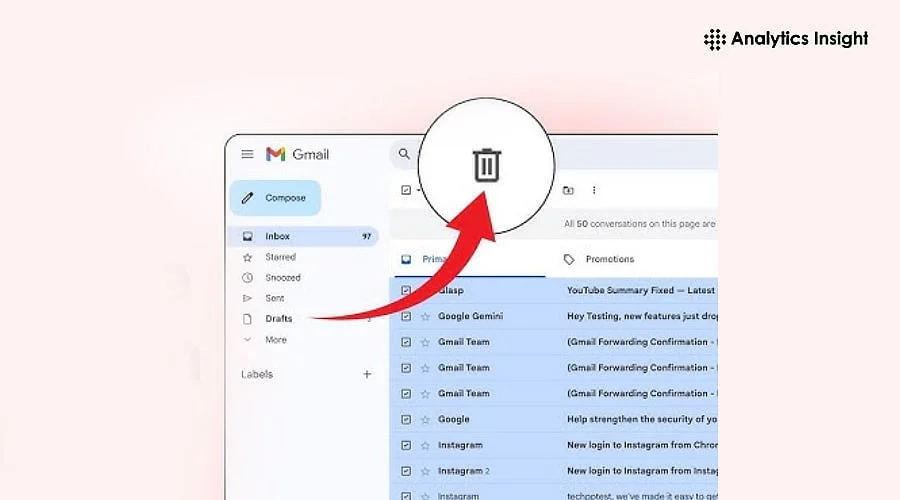
Sign in to Gmail and check the box at the top of the inbox to highlight all visible messages.
-
Click “Select all X conversations in Inbox” to expand the selection beyond just the current page.
-
Hit the trash icon to delete them, or choose archive if you want to keep the messages retrievable for later.
For massive cleanups, Gmail processes bulk actions in batches containing up to 1,000 conversations per search query. Clearing out a backlog numbering in the tens of thousands of messages might necessitate repeating the delete-and-empty process several times.
Delete Specific Types of Emails in Bulk
Gmail supports focused bulk deletion organized by sender, category, date, or label.
-
By category: clear out Promotions, Social, Updates, or Forums in a single sweep.
-
By sender: type from:[email address] into the search bar, select all matching results, and delete them.
-
By label: click a specific label located in the sidebar, choose all conversations, and delete.
-
By date: filter using before:YYYY/MM/DD or after:YYYY/MM/DD to target a specific timeframe.
-
By relative age: apply older_than:6m or older_than:1y to clear out messages past a specific age without picking exact calendar dates.
These targeted steps simplify the process of deciding what to keep and what to discard, offering far greater efficiency than simply wiping out the primary Gmail inbox.
Also Read: How to Bulk Edit Your Gmail Inbox: Manage Multiple Emails at Once
How to Delete Bulk Emails in Gmail
Delete all emails in Gmail: Open the sidebar menu, click More, pick All Mail, select all conversations, and then delete or archive them. Finally, empty the Trash folder to permanently erase the messages.
Extremely large accounts—typically those exceeding roughly 250,000 messages—might experience restrictions on certain bulk actions. Performing periodic cleanups works much better than waiting for one enormous purge.
Mass delete using the Gmail app: Bulk deletion on mobile devices remains more restricted than on desktop computers. Tap and hold a message, use the Select All option at the top, and repeat this process across multiple batches. Tap the delete icon to remove them. This applies to both iOS and Android platforms.
Automate Gmail Cleanup with Zapier
Automation prevents a clean inbox from turning into just a one-time project.
-
Third-party utilities like Zapier can filter, delete, or archive emails according to sender, label, or keyword.
-
Important messages can be flagged automatically while clutter vanishes without requiring manual effort.
-
Gmail’s built-in filters can automatically delete future messages from a chosen sender. Create a filter, check the box for “Delete it,” and optionally apply it to matching conversations already sitting in the inbox.
Automation guarantees sustained long-term productivity and diminishes the need for repetitive inbox maintenance tasks.
Quick Tips and Keyboard Shortcuts
Small tricks can speed up your Gmail inbox cleanup process:
-
Press * followed by a to select every email on the current page, then press # to delete them.
-
Press * followed by a and then e to quickly archive emails.
-
Pair these shortcuts with Gmail email automation for ongoing efficiency.
Also Read: Gmail’s New ‘Copy Code’ Feature Makes 2FA Easier: How it Works
Conclusion
Grasping how to mass delete emails on Gmail represents a major step toward achieving an organized, calm, and stress-free inbox. Automated inbox maintenance using platforms like Zapier alongside these bulk-deletion techniques serves as a powerful time-saver and efficiency booster. Combining search operators, auto-delete filters, and the Manage Subscriptions tool delivers a more comprehensive 2026 cleanup routine than relying solely on manual deletion.
Consistent application of Gmail keyboard shortcuts, automation, and category-focused deletions helps maintain an orderly inbox. This ensures storage capacity is utilized to its maximum potential while keeping critical emails easily accessible.
Fully leveraging these Gmail productivity tips removes the frustration of managing emails, creating a significant transition from a stressful set of chores into a streamlined workflow.
You May Also Like
Bomb Threat Probe: Google Under Scrutiny Over 5 Lakh+ Fake Gmail IDs
How to Recover a Hacked Gmail Account in 2026?
How to Recover Deleted Emails in Gmail Before They are Gone Forever
FAQs
How do I mass delete emails on Gmail?
To delete messages in bulk, sign in to Gmail, check the box located at the top of your inbox, and click “Select all X conversations in Inbox.” Press the trash icon to delete them, or click Archive to hide messages while keeping them accessible. This serves as the easiest way to kick off a Gmail inbox cleanup.
Can I delete multiple emails at once in Gmail by category?
Yes. Utilize Gmail’s category filters—such as Promotions, Social, Updates, or Forums. Choose a specific category, check all conversations, and click Delete or Archive. This assists in removing unwanted clutter without affecting important work correspondence.
How do I delete emails from a specific sender in Gmail?
Type from:[email address] into the Gmail search bar, select every conversation originating from that sender, and click Delete or Archive. This technique proves highly effective for clearing out recurring notifications, promotions, or newsletters.
Is it possible to automate Gmail inbox cleanup?
Yes. Automation tools designed for Gmail, such as Zapier, can automatically filter, delete, or archive messages based on keywords, senders, or labels. Automation saves time while keeping the inbox organized, removing the requirement for daily manual intervention.
Can I delete all emails in Gmail at once?
Yes. Navigate to the left-hand sidebar, click the All Mail option, select all conversations, and hit the Delete button. Be sure to empty the Trash Bin to achieve complete deletion. Practicing routine Gmail inbox cleaning prevents storage from filling up and keeps the inbox manageable.